

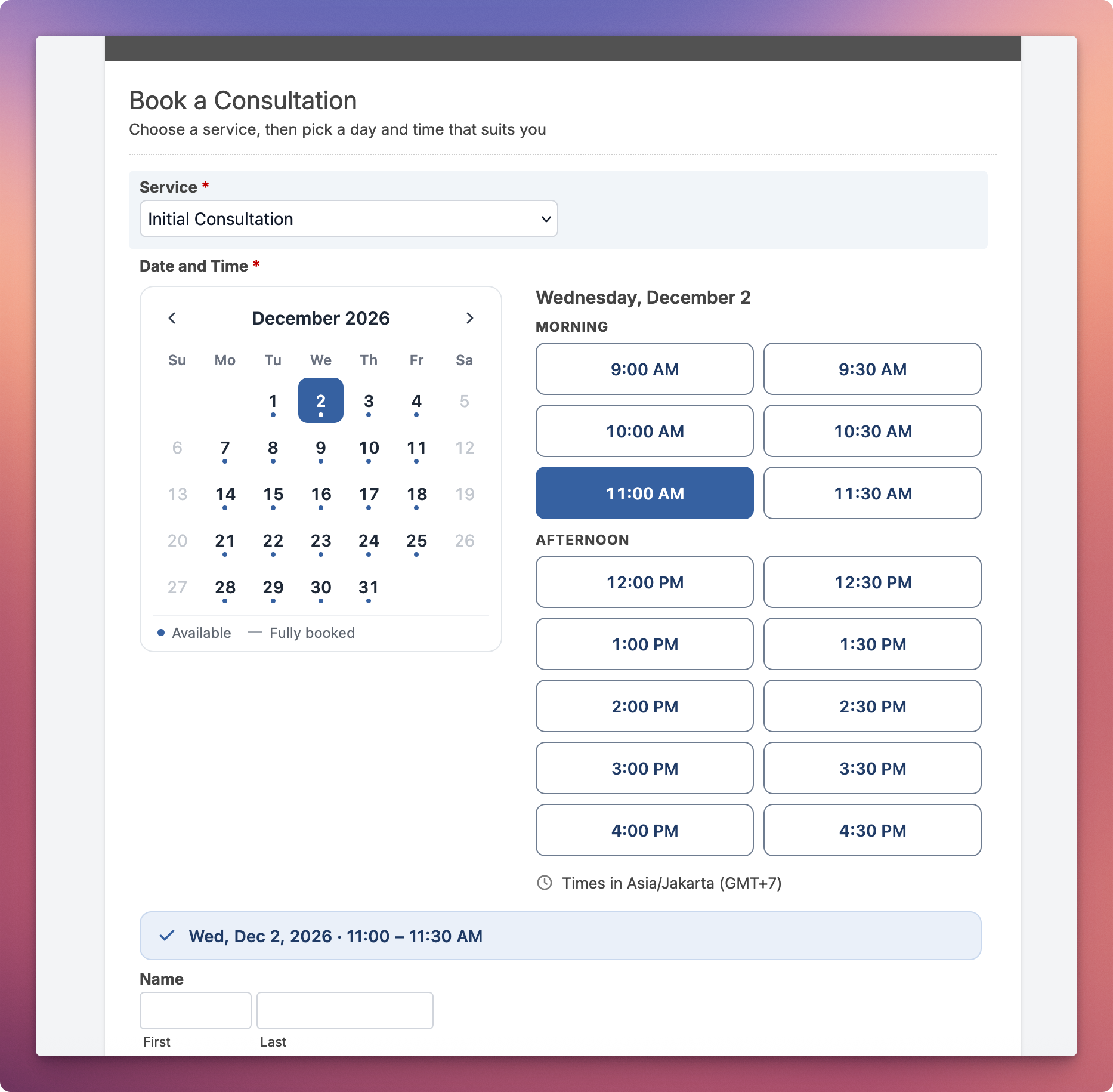
The Appointment field lets people book a time with you right on your form. They pick a day on a calendar, choose one of the free times on that day, and the time is theirs when they submit the form. MachForm makes sure two people can't book the same time, and keeps every booking in step with its entry.
Use it for consultations, classes, tours, interviews, service visits: anything people book a time for.
Add the field
Open your form in the form builder.
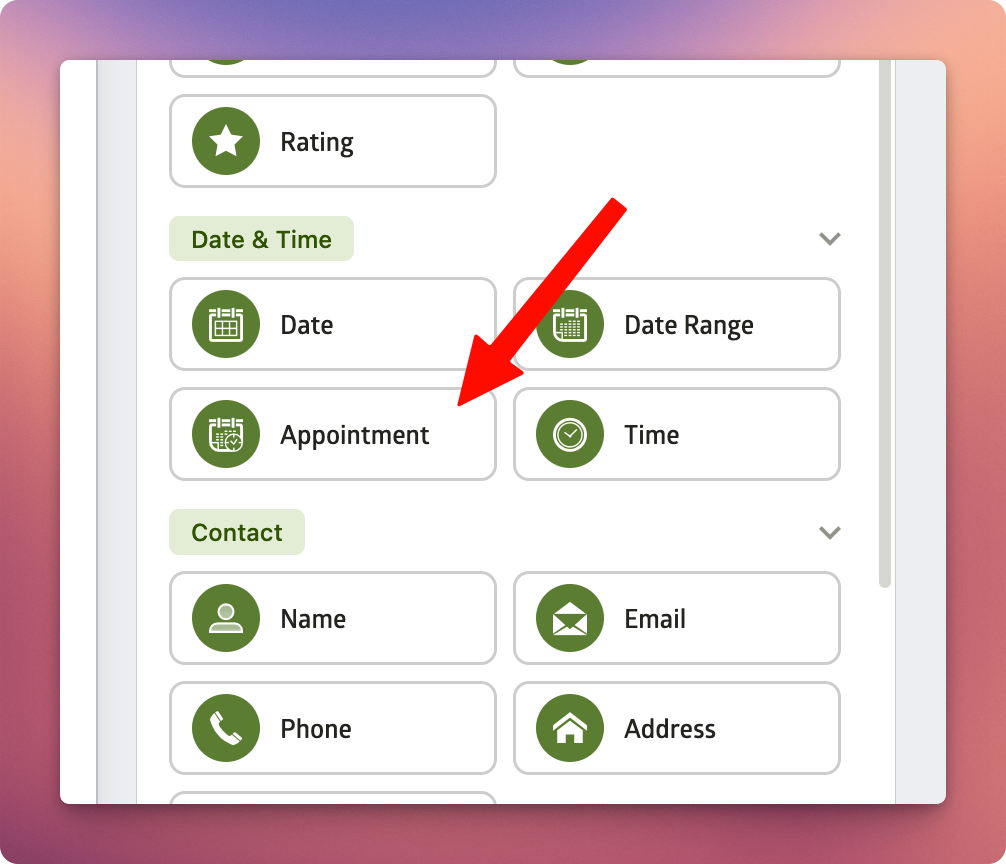
In Add a field, find Appointment in the Date & Time group and click it (or drag it onto your form).
Select the field to see its settings on the right.
Respondents can't book until you set your Weekly hours. A new Appointment field shows a reminder until you do. Click Use Mon–Fri, 9 AM–5 PM to start from regular office hours.
Settings
The settings are grouped in four sections. The text in italics is the help shown next to each setting in the builder.
Appointment
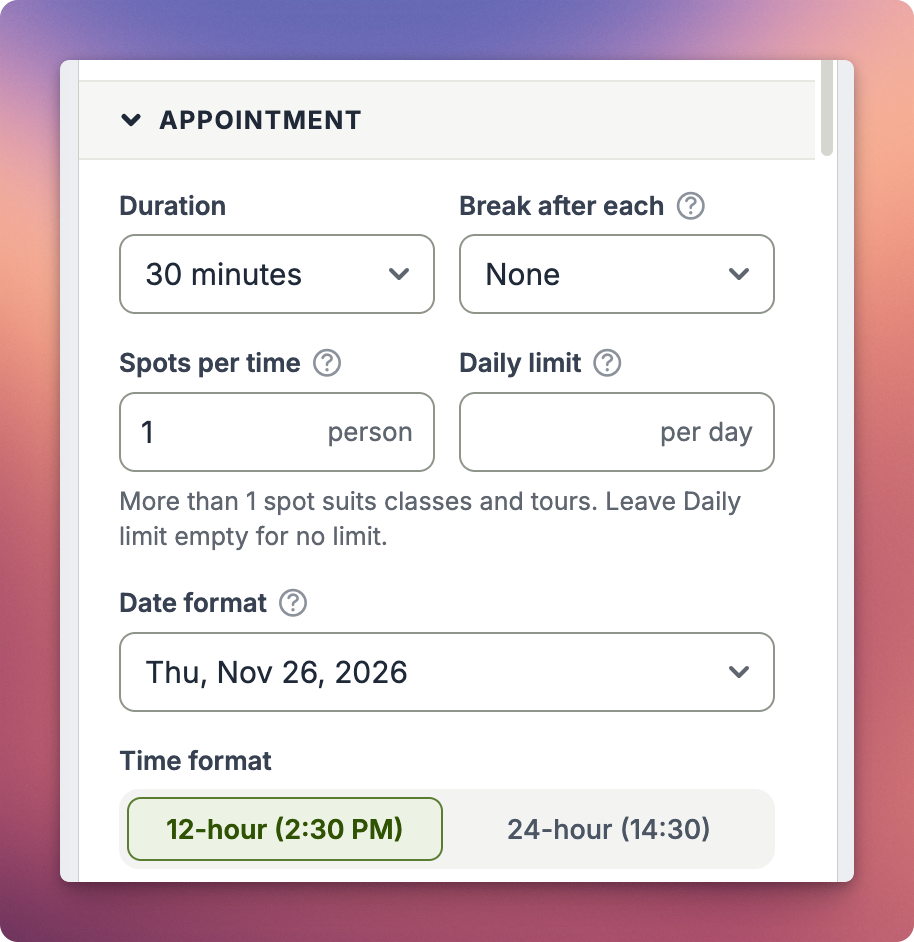
Duration: how long each appointment lasts (15, 30, 45, 60 or 90 minutes, or a custom length).
Break after each: Free time after each appointment before the next one can start.
Spots per time: How many people can book the same time. Use more than 1 for classes, tours or group sessions.
Daily limit: The most appointments that can be booked on one day, across all its times. Leave empty for no limit.
Date format: How the date of an appointment is written on the form, in emails and in entries.
Time format: 12-hour (2:30 PM) or 24-hour (14:30).
Availability
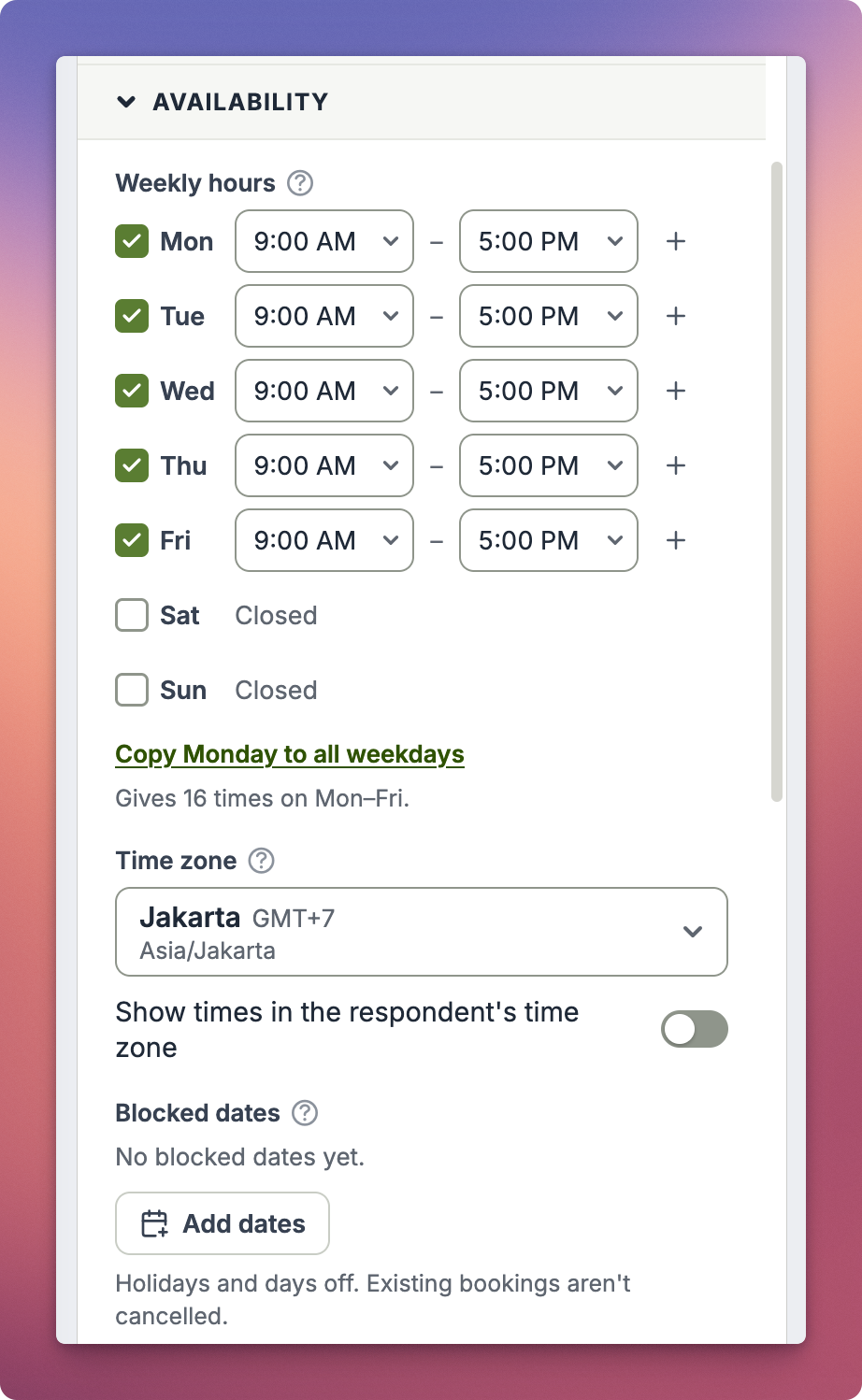
Weekly hours: The hours you take appointments on each day, in the time zone below. Add a second range to leave a gap, for example for lunch. MachForm fills each range with appointments of your chosen duration, plus the break after each. Copy Monday to all weekdays saves retyping.
Time zone: The time zone of your weekly hours. Appointments are booked in this time zone.
Show times in the respondent's time zone: when on, people see the times in their own time zone (they can change it with Change next to the time zone line). Bookings are still made in your time zone.
Blocked dates: Days you're closed, such as holidays. No times are offered on these dates. Blocking a date doesn't cancel appointments already booked on it.
Booking window
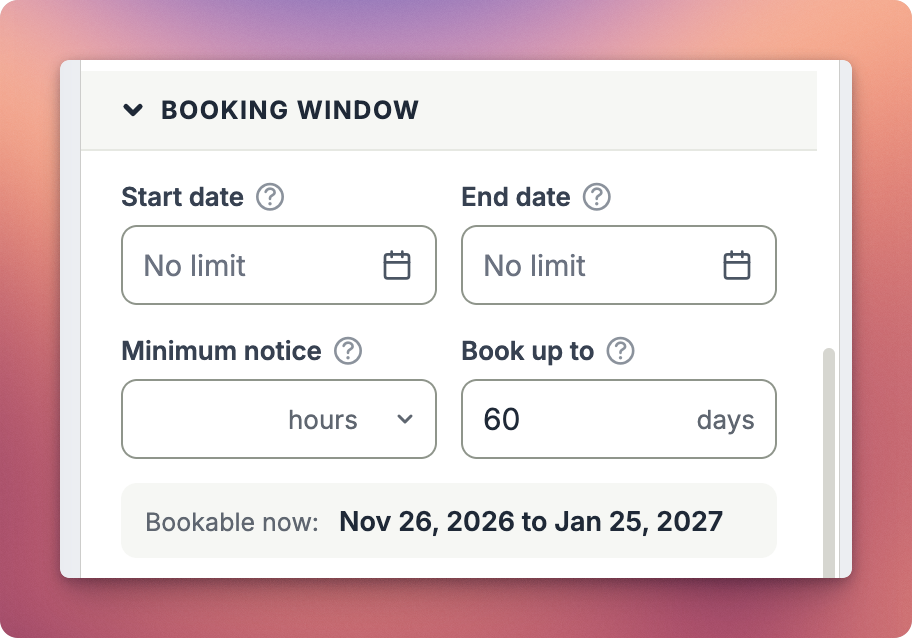
Start date: The first day people can book. Leave empty to start from today.
End date: The last day people can book. Leave empty for no end date.
Minimum notice: How far ahead people must book. Also the latest time they can cancel. For example, 2 hours means a 3:00 PM appointment can be booked, cancelled or changed online until 1:00 PM.
Book up to: How many days ahead people can book, counted from today. Leave empty for no limit.
After booking
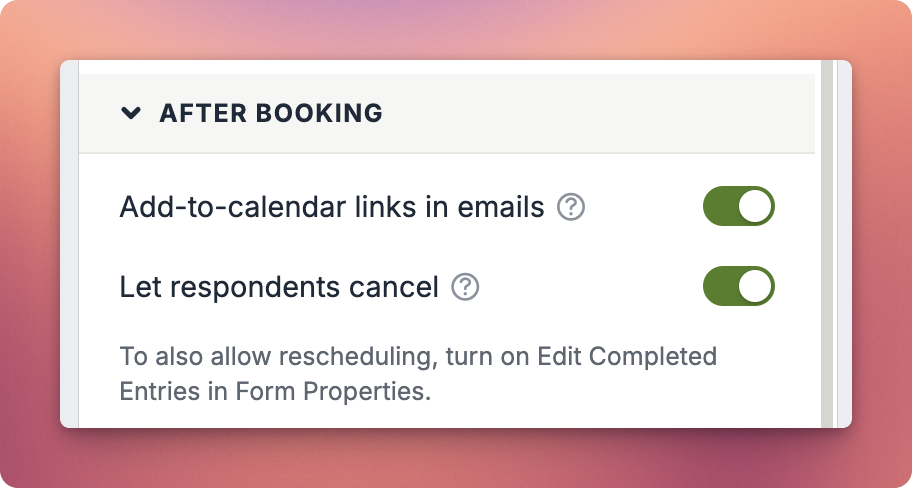
Add-to-calendar links in emails: Adds links to the emails about an appointment that put it in Google Calendar, Outlook or Apple Calendar.
Let respondents cancel: Adds a link to the emails that lets people cancel their appointment, up to the minimum notice before it starts.
The usual field rules also apply: Required, guidelines, CSS class names, and so on.
The builder's preview shows your calendar and times as respondents will see them, with no bookings.
What respondents see
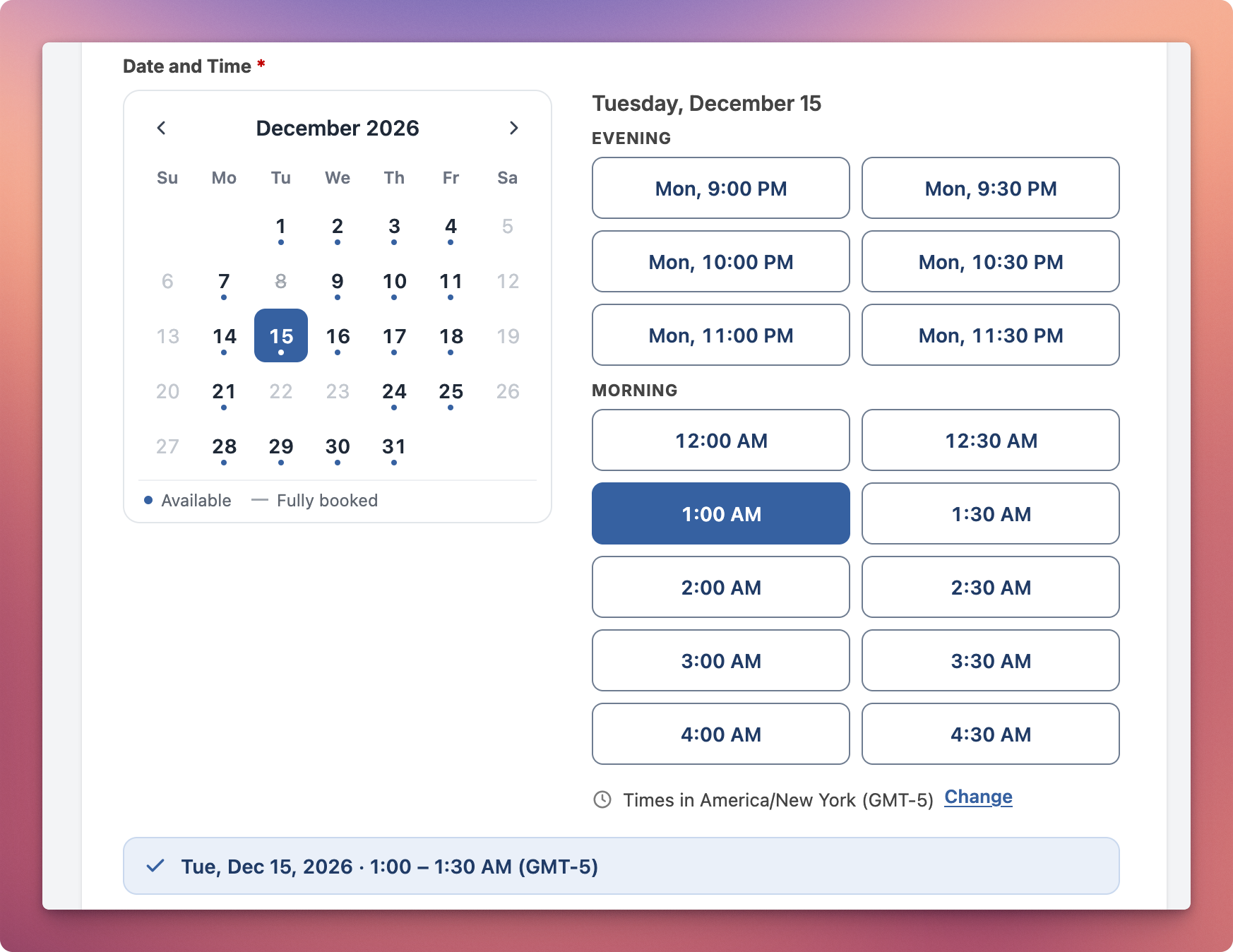
A calendar. Days with free times have a dot. Fully booked days are marked, and days outside your hours or booking window are greyed out.
The day's times, grouped into Morning, Afternoon and Evening. When more than one person can book a time, each time shows how many spots are left ("3 left").
A time zone line, for example "Times in New York (GMT-5)", with Change if you let people use their own time zone.
A summary of the chosen time, for example "Tue, Nov 3, 2026 · 9:00 – 9:30 AM".
Everything works with the keyboard and screen readers, and on phones.
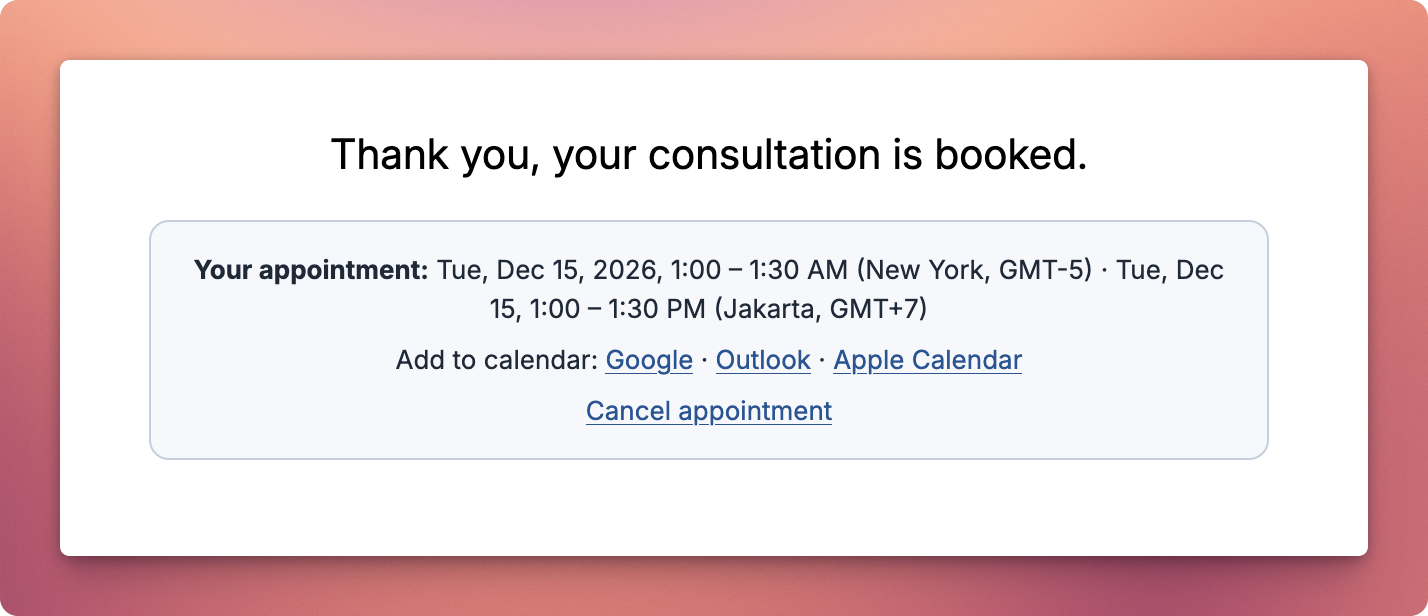
After submitting, the success page shows Your appointment with the time, the add-to-calendar links (if on), and Cancel appointment and Change time links (if allowed).
While the form is being filled in
To stop two people booking the last spot, the chosen time is held for the respondent once they submit the page with the field:
Single-page forms: held for 10 minutes while the entry is saved.
Multi-page forms and forms with a review page: held for 15 minutes, and the hold is renewed every time they move to another page.
Forms with a payment: held for 30 minutes while they pay.
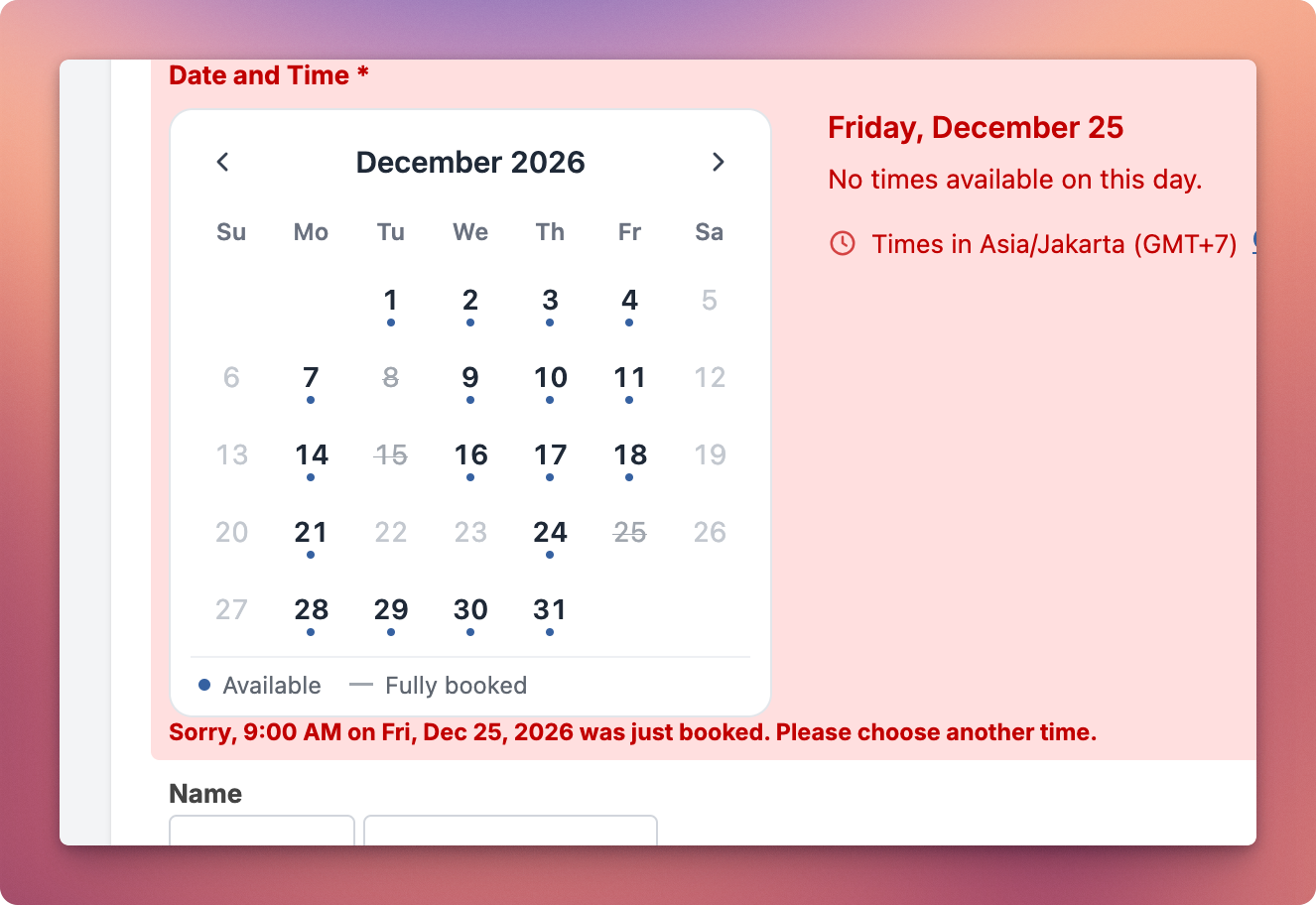
If someone else books the last spot first, the respondent sees "Sorry, 9:00 AM on Mon, Nov 9 was just booked. Please choose another time." with the day's latest times, and picks again.
Booking with the keyboard
Respondents can book a time without a mouse. The calendar is always shown in the form, so there's nothing to open.
Choosing a day
Press Tab to move into the calendar; one day in it is in the Tab order. Then:
Key | What it does |
Left / Right arrow | Previous or next day |
Up / Down arrow | The same day in the previous or next week |
Home / End | First or last day of that week |
Page Up / Page Down | The same day in the previous or next month |
Shift + Page Up / Page Down | The same day in the previous or next year |
Enter or Space | Choose the focused day |
Each day is read with how many free times it has, or that it's fully booked or unavailable. Days with no free times can still be reached, so that can be read out, but they can't be chosen. When the month changes, the new month is announced.
Choosing a time
After choosing a day, press Tab to move to its times. They work as one group:
Arrow keys | Move to the previous or next time |
Home / End | First or last time of the day |
Enter or Space | Choose the focused time |
Tab then moves on to the rest of the form. The summary ("Tue, Nov 3, 2026 · 9:00 – 9:30 AM") is announced when a time is chosen.
Changing time zone
If the field shows Change next to the time zone, press Enter on it to open the list. Type part of a city or country to narrow it down, use Up / Down arrow and Page Up / Page Down to move through the results, and press Enter to choose. Escape first clears what you typed, and a second Escape closes the list; focus stays on Change.
Screen readers
Each day is read with its date and how many free times it has, each time with how many spots are left when more than one person can book it, and every choice is announced.
Payments
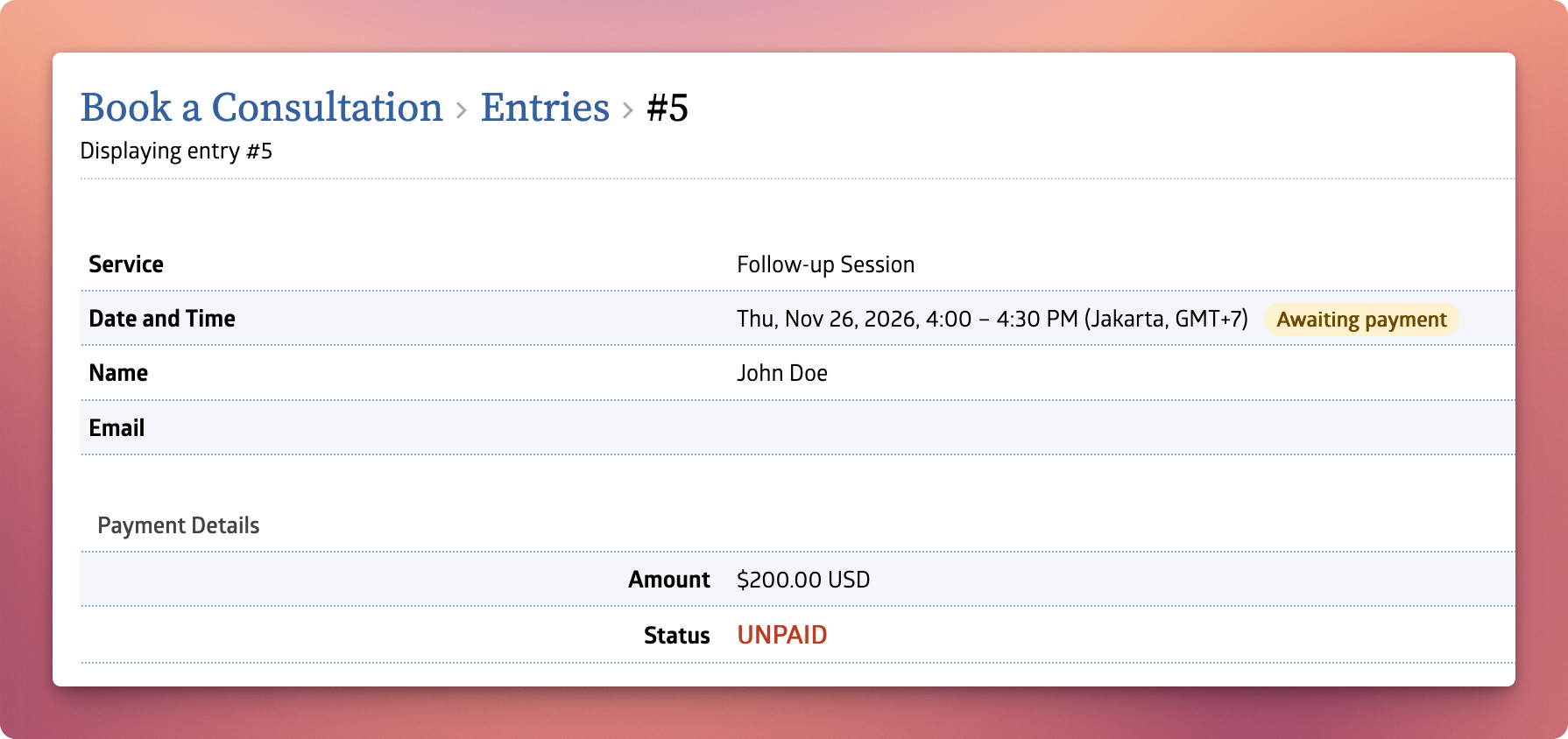
When a form takes a payment, the time is held while the respondent pays and is booked as soon as the payment completes. Until then, the entry shows the appointment as Awaiting payment.
If a payment completes after the hold has run out:
If the time is still free, it's booked as usual.
If someone else has booked it, the entry is marked Needs a new time. The respondent gets an email saying their time is no longer available. If they can change their time (see below), the email includes a link to choose a new one; otherwise it says you'll contact them. The form's admins get an email too, with a link to the entry.
Cancelling and changing a time
What respondents can do depends on two settings: the field's Let respondents cancel and the form's Edit Completed Entries (Form Properties).
Let respondents cancel | Edit Completed Entries | Respondents can… |
Off | On or off | Nothing. In the edit link, the appointment is shown but can't be changed. |
On | Off | Cancel, through the link in their email. |
On | On | Cancel through the link in their email, and change the time through the edit link. |
Both are possible only until the minimum notice before the appointment starts (or until it starts, with no minimum notice). After that, the cancel link says "This appointment can no longer be cancelled online." and the edit link shows the time without letting it change.
Cancelling: the link in the email opens a page with the appointment and a Cancel appointment button (opening the link alone never cancels anything). Once cancelled, the time is free for others, and the entry keeps a record of what was booked.
Changing the time: the edit link shows the calendar with the current time chosen. The respondent picks another free time and saves. The appointment moves; if the new time was taken in the meantime, they're asked to pick another, and nothing changes until they do.
Emails: after a cancellation or a change, the respondent and the form's admins get a short email about it (or, for a change, the form's usual notifications if the form sends them again when an entry is edited). The respondent's email updates or removes the event in their calendar app.
Every booking, change and cancellation is written to the entry's log.
Several Appointment fields on one form
You can add more than one Appointment field to a form, for example a consultation and a follow-up. Each Appointment field has its own availability: bookings in one don't block times in another. The builder shows a note about this when the form has two or more Appointment fields.
Entries, exports and emails
Entries
The entry shows the appointment's date and time, with its status if it isn't simply booked: Awaiting payment, Needs a new time, Cancelled or Released (freed because the entry was deleted, an approval was denied, or a payment never arrived).
The entries list has a column for the appointment, and the filter can find entries whose appointment is on, is before or is after a date.
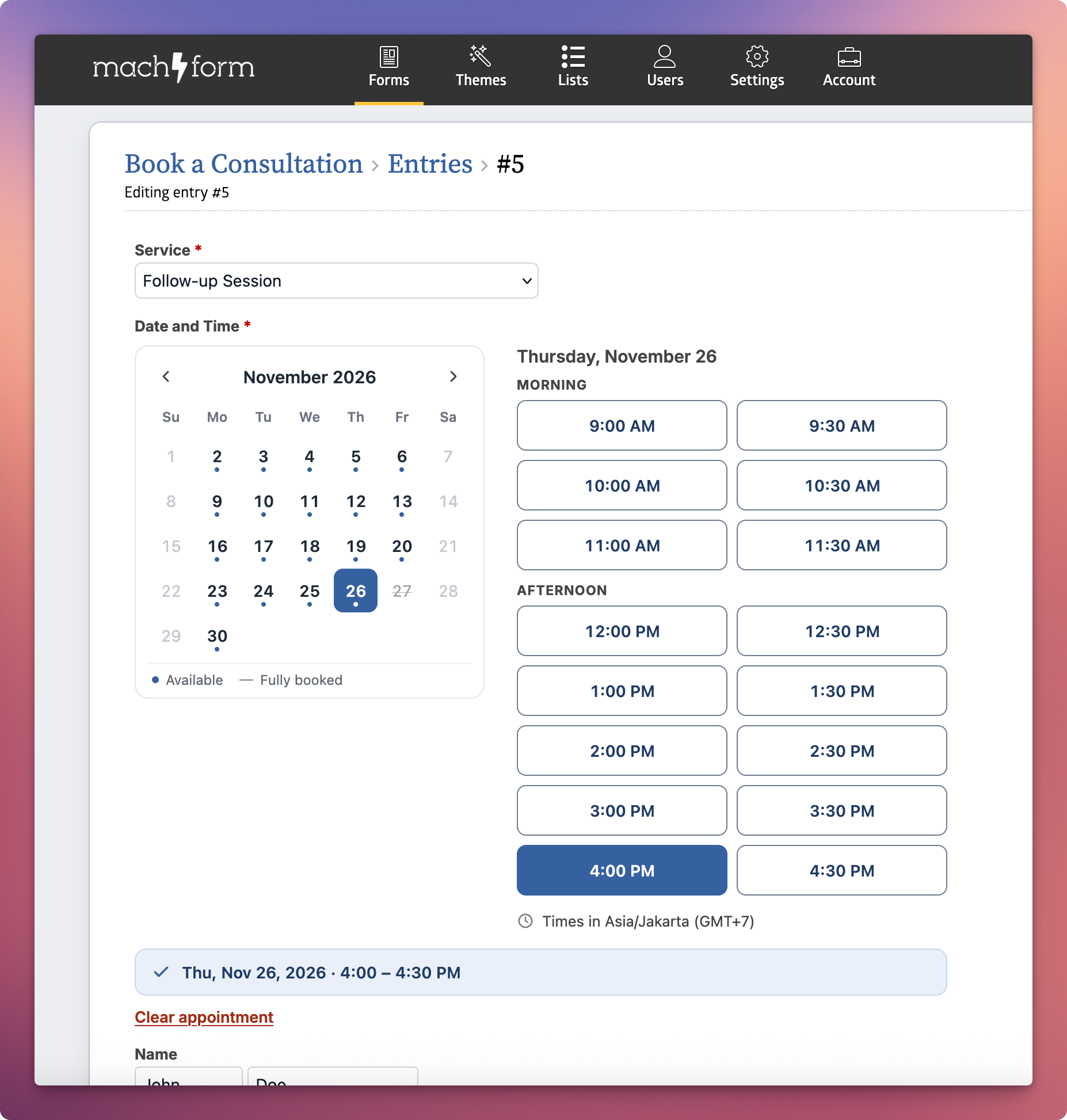
On Edit Entry, you can move an appointment to any time (even one that's full: you'll see a warning), set one for an entry without, or Clear appointment. Admins aren't limited by the minimum notice.
Deleting an entry frees its time.
Exports
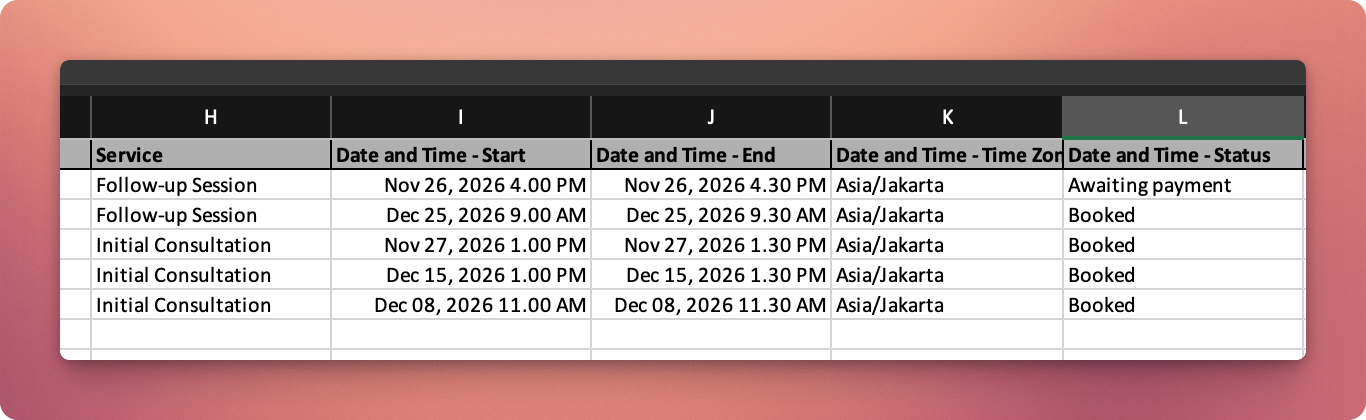
CSV and Excel exports have four columns for each Appointment field: Start, End, Time Zone and Status. Excel exports store the start and end as real dates. PDFs of entries show the appointment like the entry view.
Emails and merge tags
{entry_data} includes the appointment. In respondent emails it's shown in the respondent's time zone first, followed by the add-to-calendar links and the Cancel appointment and Change time links when they apply. Respondent emails also carry an appointment.ics file for calendar apps. Admin emails show the time in your time zone, without these links.
For your own email templates, these merge tags are available for each Appointment field (replace N with the field's number):
Merge tag | Shows |
{element_N} | The full appointment, for example "Tue, Nov 3, 2026, 9:00 – 9:30 AM (New York, GMT-5)" |
{element_N_date} | The date |
{element_N_time} | The end time |
{element_N_timezone} | The time zone |
{element_N_gcal_url} | A link that adds it to Google Calendar |
{element_N_outlook_url} | A link that adds it to Outlook |
{element_N_cancel_url} | The cancel link's address (empty unless the appointment is booked and respondents can cancel) |
{element_N_cancel_link} | A "Cancel appointment" link (empty in the same cases) |
Logic
Field, page, email, webhook, success page and approval logic can use the appointment's date: is, is before or is after a date.
Time zones
Your weekly hours and every booking use the field's time zone. Daylight saving changes are handled for you.
With Show times in the respondent's time zone, people see times in their own zone; the time they pick is the same moment, just written differently.
Respondent emails show the time in the respondent's zone first and then in yours, for example "Mon, Nov 9, 5:00 AM (Paris, GMT+1) · 11:00 AM (Jakarta, GMT+7)". Admin emails, entries and exports use your time zone.
Common questions
Why can't respondents see any times?
Check, in this order:
The field has Weekly hours set.
The Start date and End date include the days people are looking at, and Book up to reaches far enough.
The Minimum notice isn't longer than the time left today.
The days aren't Blocked dates.
The times aren't all booked (look at the entries, or raise Spots per time or the Daily limit).
The form itself is open (not closed, scheduled, or over its entry limit).
What happens if two people pick the same time?
Only one gets it. The time is held for whoever submits first; the other person sees "Sorry, … was just booked. Please choose another time." and picks again. With more than one spot per time, people can share a time until it's full.
Can I overbook a time?
Yes, on the Edit Entry page. You'll see a warning that the time is full, and the overbooking is written to the entry's log.
What happens to existing appointments if I change the weekly hours or block a date?
They're kept. New settings only affect times people can book from now on. Move or clear appointments yourself on the Edit Entry page if needed.
Does deleting an entry free its time?
Yes. So does denying an approval or deleting the Appointment field (after a warning in the builder if it has upcoming appointments).
Can respondents change their appointment?
Yes, if the field lets them cancel and the form allows editing completed entries, until the minimum notice before the appointment.
Is the field translated?
Yes. It follows the form's language, including the calendar's month and day names and the first day of the week.