

MachForm is a PHP web application and should be secured using the same principles that apply to other self-hosted PHP applications such as WordPress, Drupal, and similar web applications.
MachForm includes several application-level security controls. These controls should be combined with appropriate operating system, web server, PHP, database, network, and access-control configuration.
For production environments, particularly those that collect confidential or sensitive information, we recommend implementing the controls described in this guide.
The following security measures can help strengthen a MachForm Self-Hosted installation:
Store uploaded files outside the public web document root.
Enforce two-step verification or SSO for administrative users.
Restrict Admin Panel access by IP address where practical.
Enable account locking.
Enable data encryption for forms that collect sensitive information.
Enable CAPTCHA on public forms.
Require HTTPS.
Keep MachForm and the underlying server software up to date.
Apply least-privilege permissions.
Maintain secure backups and monitor the application for suspicious activity.
1. Store uploaded files outside the public web document root.
We strongly recommend configuring every MachForm Self-Hosted installation to store uploaded files outside the public web document root.
This prevents uploaded files from being accessed directly through a URL and provides an additional layer of protection against malicious file uploads.
For example, if your MachForm installation is located at:
/var/www/example.com/machform
create a private directory such as:
/var/private/machform-data
The private directory must be readable and writable by the operating system account used by PHP, but it should not be directly accessible through Apache, Nginx, IIS, or another web server.
1.a Configure a new installation
We recommend configuring the private upload directory immediately after installing MachForm and before creating forms.
To configure the upload directory:
Create a directory outside your website's document root.
Configure the directory permissions so that PHP can read and write files in the directory.
Sign in to the MachForm Admin Panel.
Choose Settings.
Expand Advanced Options.
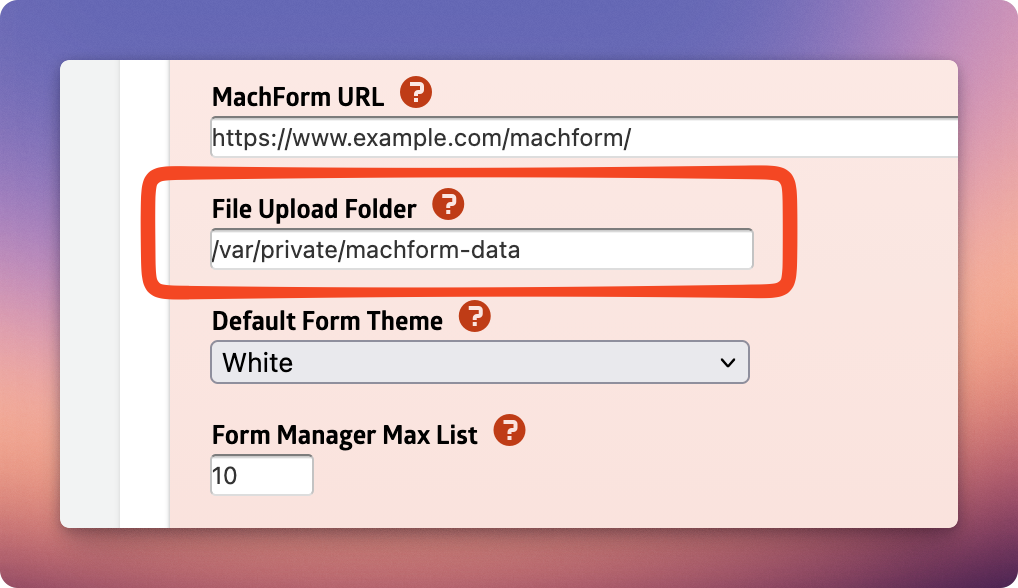
Set File Upload Folder to the absolute filesystem path of the new directory.
For example:
/var/private/machform-data
1.b Configure an existing installation
If your MachForm installation already contains forms and uploaded files, migrate the existing upload directory before changing the configuration.
MachForm stores uploaded files in a directory under machform/data using the format filesXYZ, where XYZ is a randomly generated character string. For example:
machform/data/filesc797a163c370d170c36c188e1c36b40e
To migrate existing uploads:
Create the new private upload directory outside your public web document root. For example: /var/private/machform-data
Copy the contents of your existing filesXYZ directory to the new directory.
For example, copy the contents of:
machform/data/filesc797a163c370d170c36c188e1c36b40e
to:
/var/private/machform-data
Go to Settings > Advanced Options and update File Upload Folder with the new path.
Verify that existing uploaded files can still be accessed from MachForm.
Submit a test upload and verify that the new file is stored in the new directory.
After confirming that the migration was successful, you can safely delete the old filesXYZ directory from machform/data.
Do not delete the machform/data directory itself. MachForm uses the data directory for other application data.
Storing uploaded files outside the document root provides the strongest protection against direct access to uploaded files and is strongly recommended for production installations.
2. Enforce two-step verification or SSO for administrative users.
Password authentication alone provides limited protection if a user's password is compromised.
MachForm supports two-step verification using Time-based One-Time Passwords (TOTP). When this feature is enabled, users must provide both their password and a six-digit verification code generated by an authenticator application.
To enable two-step verification:
Sign in to the MachForm Admin Panel.
Choose Settings.
Expand Advanced Options.
Enable Enforce 2-Step Verification on Users.
Save your settings.
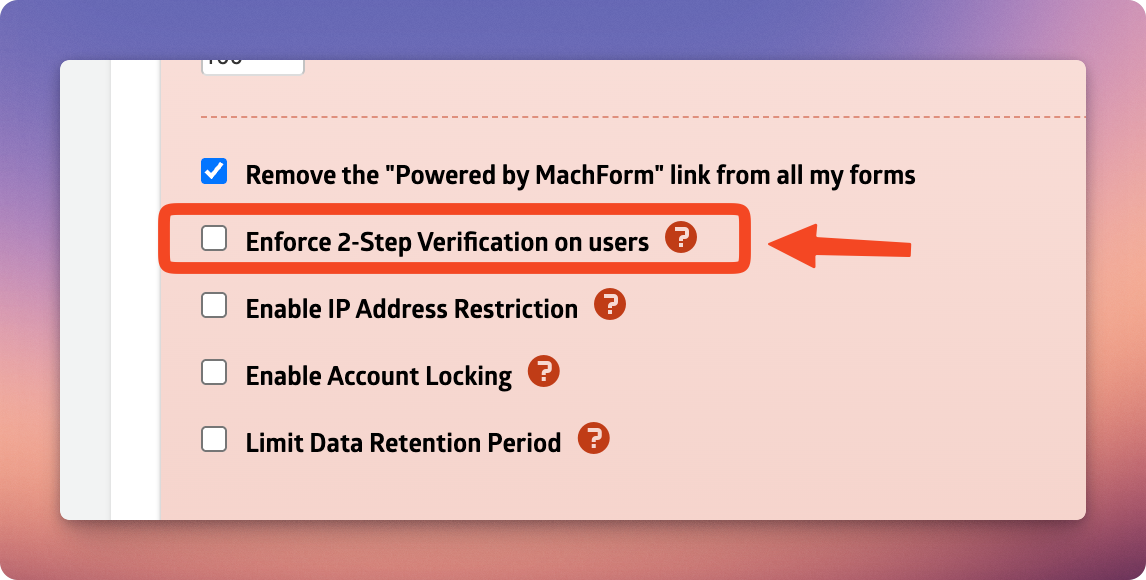
After this setting is enabled, MachForm users are required to enroll in two-step verification when signing in.
For enterprise environments, we recommend enforcing two-step verification for all local MachForm accounts.
If your organization uses SAML 2.0 Single Sign-On, multi-factor authentication can instead be enforced through your identity provider. This allows your organization to apply centralized controls such as MFA, conditional access, device requirements, and user lifecycle policies.
3) Restrict Admin Panel access by IP address where practical.
MachForm can restrict Admin Panel login access to specified IP addresses.
This is useful when administrators normally access MachForm from a corporate network, VPN, or other locations with known IP addresses.
To configure IP restrictions:
Sign in to the MachForm Admin Panel.
Choose Settings.
Locate the IP address restriction setting.
Enable IP Address Restriction.
Enter the permitted IP addresses, one entry per line.
Save the configuration.
Test the configuration before ending your current administrative session.
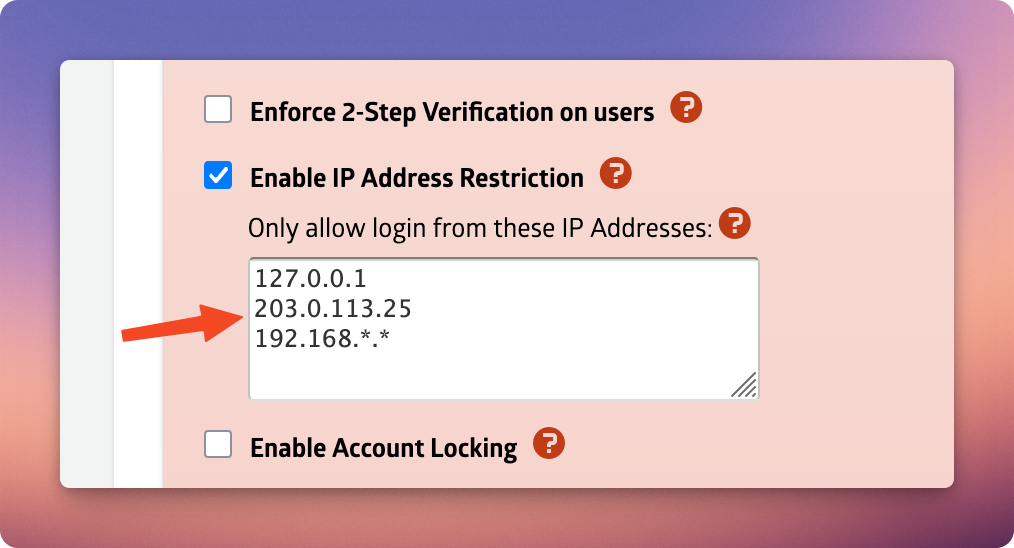
You can enter individual IP addresses:
HTML127.0.0.1
192.168.1.10
203.0.113.25
You can also use wildcard characters to allow an IP address range:
HTML192.168.*.*Each address or pattern must be entered on a separate line.
For remote administrators, consider requiring access through a corporate VPN and allowing the VPN's public IP address.
Before enabling IP restrictions, verify that the IP addresses used by your administrators are sufficiently predictable. Incorrect configuration can prevent authorized administrators from accessing the Admin Panel.
4) Enable account locking.
Automated attackers frequently attempt to discover passwords by submitting repeated login attempts.
MachForm can temporarily lock a user account after a configurable number of invalid login attempts.
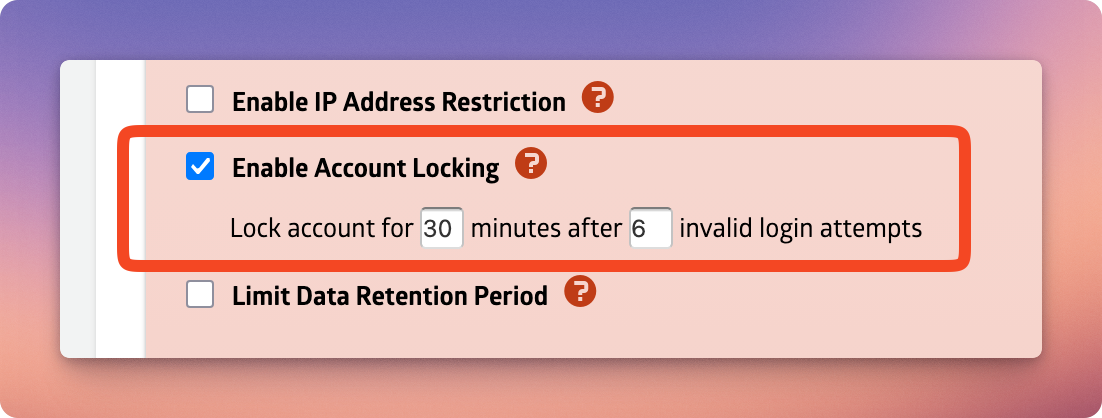
The account locking configuration uses the following policy:
HTMLLock account for [x] minutes after [y] invalid login attemptsFor example, an administrator could configure MachForm to lock an account for a specified period after several consecutive failed sign-in attempts.
To enable account locking:
Sign in to the MachForm Admin Panel.
Choose Settings.
Locate the account locking settings.
Configure the lockout duration.
Configure the number of invalid login attempts allowed before the account is locked.
Save your settings.
Choose values that provide protection against brute-force attacks without unnecessarily disrupting legitimate users.
Account locking should be used together with two-step verification or SSO.
5) Enable data encryption for forms that collect sensitive information.
MachForm supports encryption for form data that requires additional protection.
Consider enabling data encryption when collecting information such as:
Personally identifiable information.
Confidential business information.
Financial information.
Internal organizational data.
Other sensitive records.
Because encryption requires additional configuration and operational considerations, see the dedicated MachForm documentation for implementation details:
Encryption should be considered one layer of a broader security architecture. It does not replace HTTPS, strong authentication, access restrictions, secure backups, or database security.
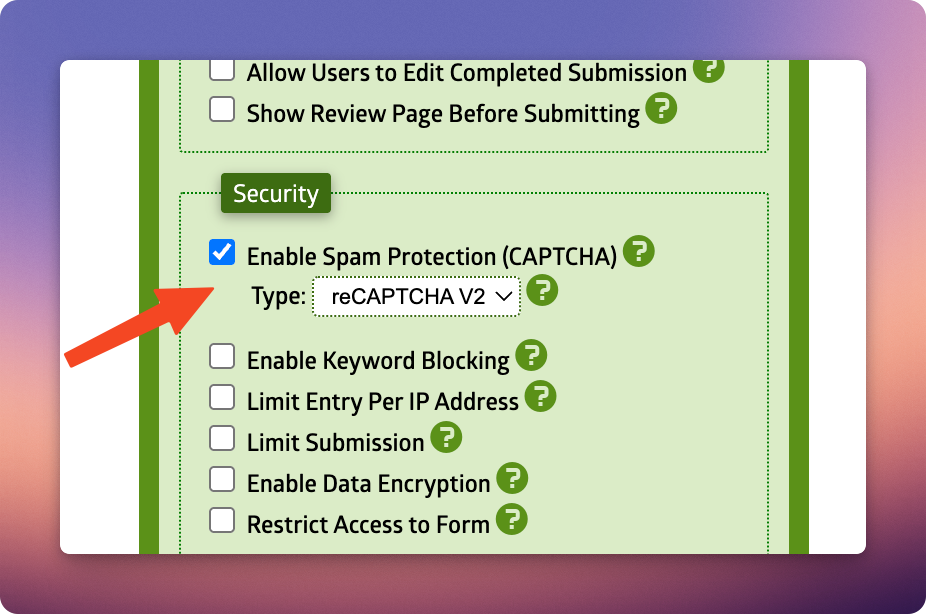
6) Enable CAPTCHA on public forms.
Public forms can be targeted by spam bots and other automated traffic.
Enable CAPTCHA on publicly accessible forms, particularly forms that:
Accept file uploads.
Send email notifications.
Trigger workflows or integrations.
Create registrations or requests.
Have experienced automated or abusive submissions.
Configure CAPTCHA from the form's settings.
7) Require HTTPS.
All production MachForm installations should be accessed exclusively over HTTPS.
HTTPS protects authentication credentials, form submissions, session cookies, uploaded files, and administrative traffic while information is transmitted between the browser and your server.
Configure your web server or load balancer to:
Install a valid TLS certificate.
Redirect HTTP requests to HTTPS.
Disable obsolete TLS protocol versions and weak cipher suites.
Renew certificates automatically where possible.
If MachForm is running behind a reverse proxy or load balancer, ensure that the web server and PHP correctly recognize the original HTTPS connection.
Do not operate a production MachForm Admin Panel over unencrypted HTTP.
8) Keep MachForm and the underlying server software up to date.
Security vulnerabilities can exist at multiple layers of the application stack.
Keep the following components current:
MachForm.
PHP.
Apache, Nginx, IIS, or another web server.
MySQL or MariaDB.
The server operating system.
PHP extensions and supporting libraries.
Reverse proxies, load balancers, and security appliances.
Apply MachForm security updates as soon as they are released.
You should also use a PHP version that is actively supported by the PHP project. PHP releases that have reached end of life should not be used for Internet-facing production systems.
Remove unused services, PHP extensions, development utilities, and other software where practical to reduce the server's attack surface.
9) Apply least-privilege permissions.
Do not provide administrative permissions to users who do not require them.
Regularly review MachForm user accounts and permissions.
Recommended practices include:
Remove or disable accounts belonging to former employees.
Do not share user accounts.
Assign access based on job responsibilities.
Limit form editing and entry management permissions to users who require them.
Periodically review privileged accounts.
Use conservative default permissions for users provisioned through SSO.
Least privilege limits the amount of data and functionality available if an account is compromised.
10) Maintain secure backups
Back up both the MachForm database and directories containing uploaded files.
A complete recovery plan should include:
The MachForm database.
Uploaded files.
MachForm configuration.
Encryption-related information required for recovery.
Relevant server configuration.
Backups containing MachForm data should receive at least the same level of protection as the production system.
For sensitive environments:
Encrypt backups.
Limit backup access to authorized personnel.
Store backups separately from the production server.
Maintain multiple recovery points where appropriate.
Periodically test restoring from backup.
Security responsibility for self-hosted installations
MachForm provides application-level security controls, but the overall security of a self-hosted installation also depends on the environment in which it is deployed.
Customers operating self-hosted MachForm installations are responsible for securing and maintaining the operating system, PHP runtime, web server, database server, network configuration, TLS certificates, backups, and other supporting infrastructure.
For this reason, a secure MachForm deployment should use multiple layers of protection rather than relying on any single setting.