

The Date Range field asks for two dates in one field: a start and an end. Respondents pick both on one calendar, or type them, and the field shows how long the range is: "4 nights" or "5 days".
Use it for anything with a start and an end date:
hotel and guesthouse stays, counted in nights;
car, equipment and holiday rentals, counted in days;
time-off and leave requests, where weekends in the middle don't count as leave;
events and courses that run over several days.
The field can also limit how many entries can include the same date, such as the rooms you have each night, so a date is never booked more times than you have places, and it can set the payment amount with a price per night or per day.
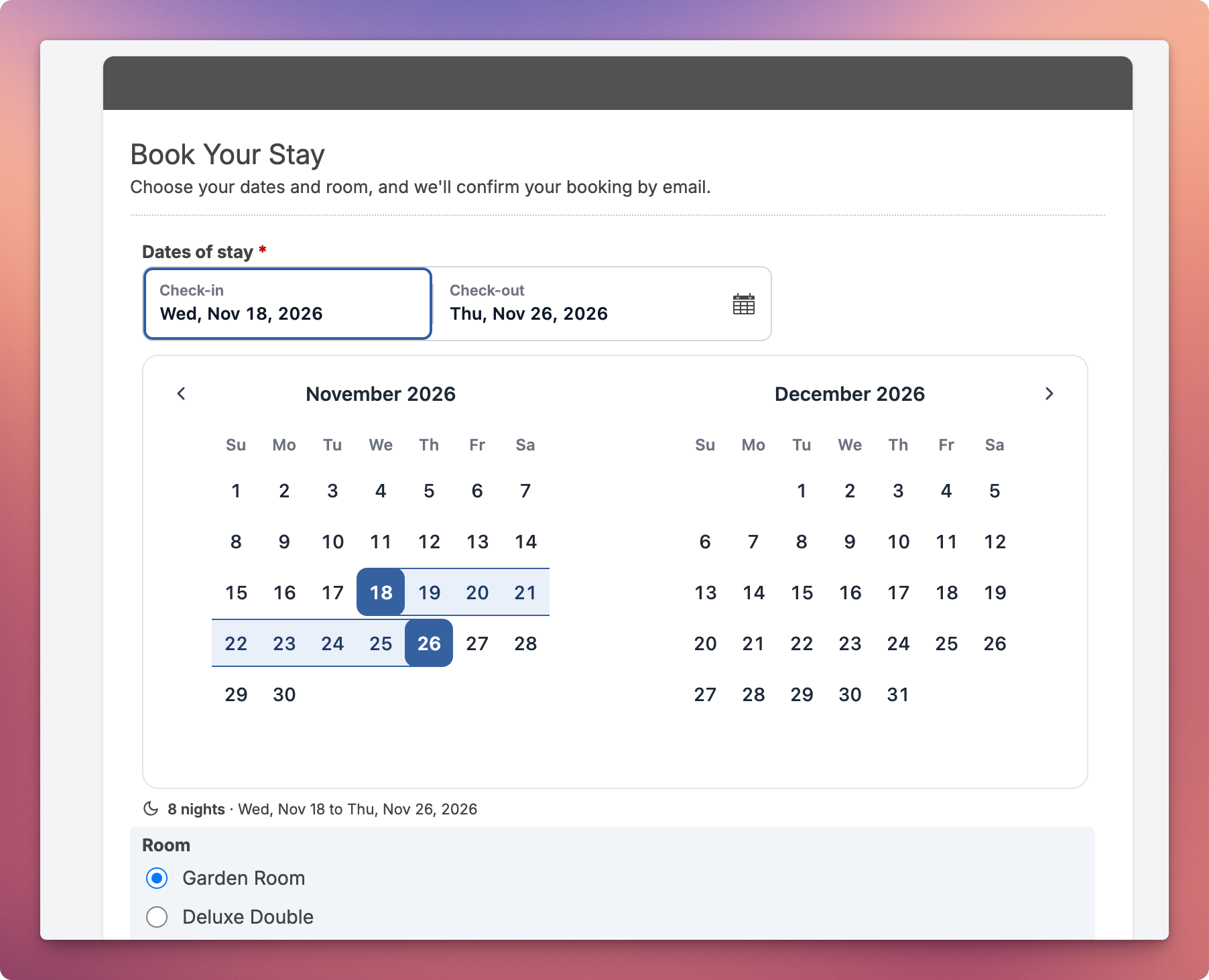
Add the field
Open your form in the form builder.
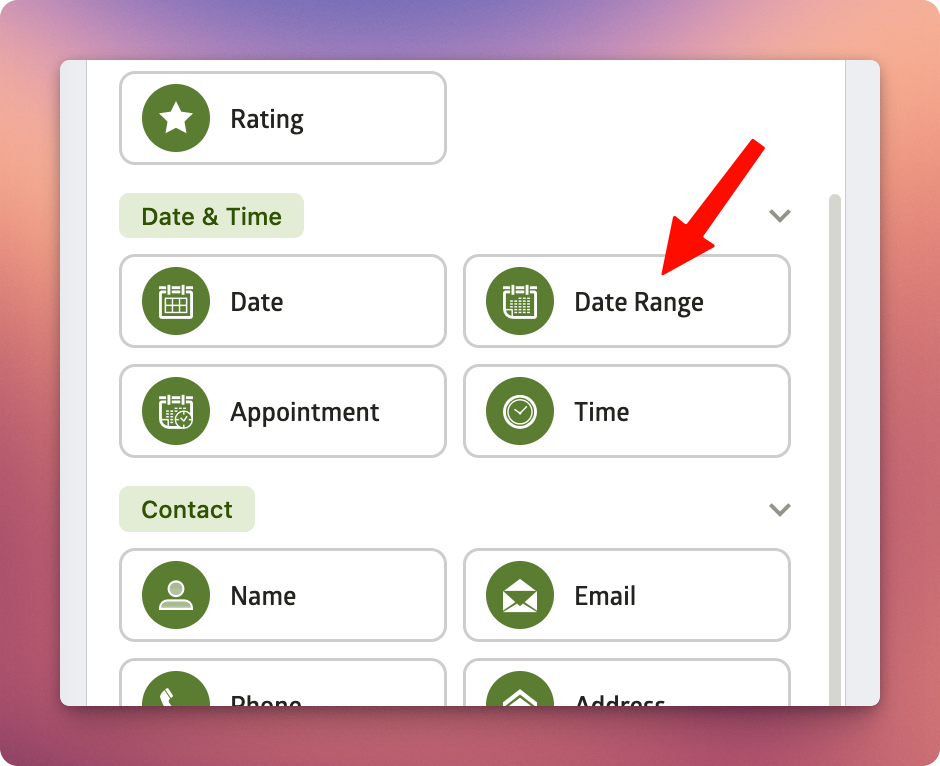
In Add a field, find Date Range in the Date & Time group and click it (or drag it onto your form).
Select the field to see its settings on the right.
A new Date Range field works straight away: two dates, typed or picked from a popup calendar, counted in days. Change the labels to your own words (for example Check-in and Check-out) and choose Nights if you take stays.
Settings
The settings are grouped in sections. The text in italics is the help shown next to each setting in the builder.
Date range
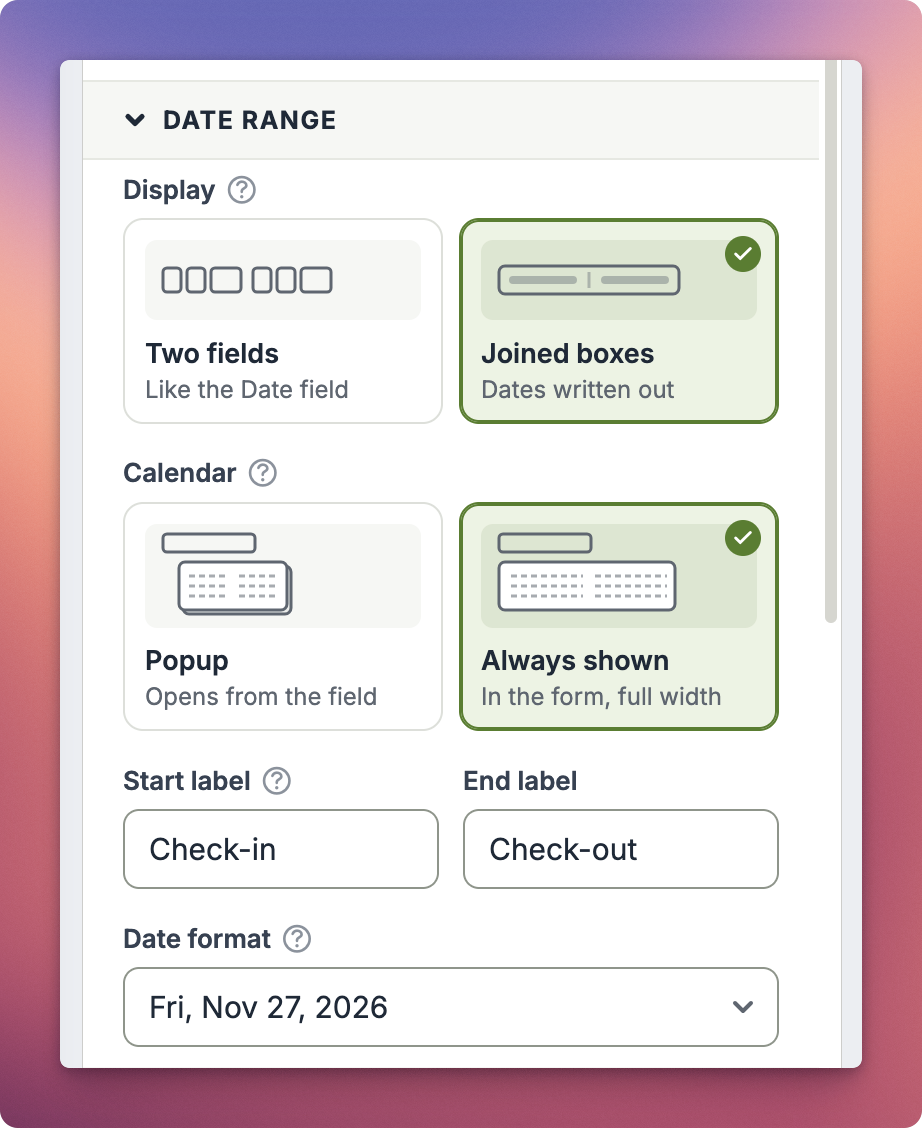
Display: Two fields: three boxes for each date, like the Date field. Joined boxes: one box that shows both dates written out.
Calendar: Popup: the calendar opens from the field. Always shown: the calendar sits in the form, and the field takes the full width.
Start label and End label: The name of each date on the form, for example Check-in and Check-out. These words appear on the form, in the calendar, in error messages, in your entries and in emails. Leave them empty for "Start date" and "End date" in the form's language.
Date format: How the dates are written on the form, in emails and in entries. It also sets the order the dates are typed in. For example, with "20/11/2026" respondents type the day first.
Length
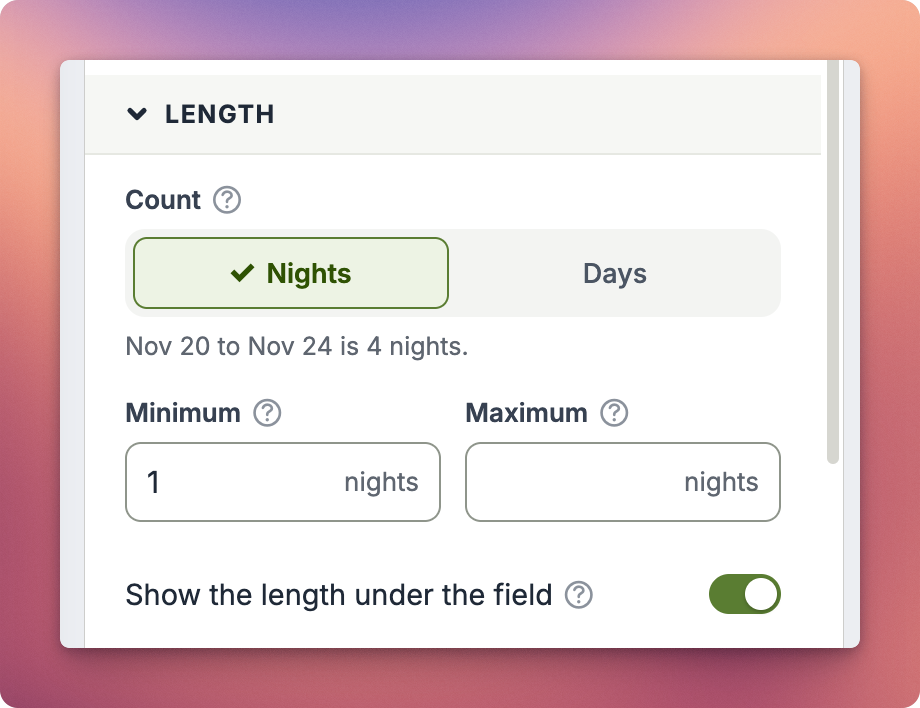
Count: Nights for stays, where the last day isn't counted. Days for rentals and time off, where both the first and the last day count.
Minimum: The shortest range a respondent can choose. In nights or days, following Count.
Maximum: The longest range a respondent can choose. Leave it empty for no limit.
Show the length under the field: Shows how many days or nights the range covers, under the field, once both dates are picked.
Available dates
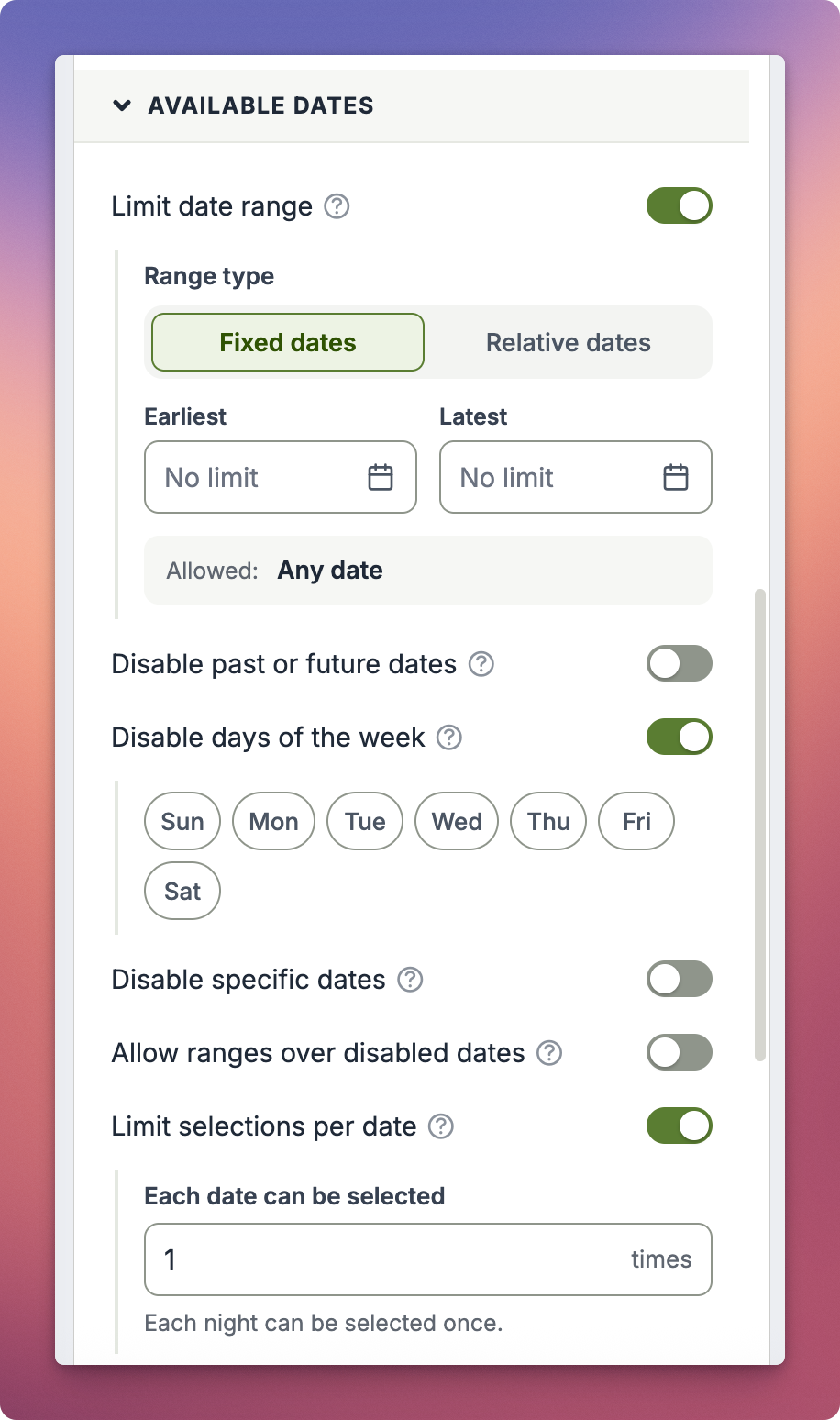
These are the Date field's own settings, and they work the same way, for both dates of the range.
Limit date range: You can set minimum and/or maximum dates within which a date may be chosen. Choose Fixed dates (an earliest and a latest date) or Relative dates (days before and after today, so the window moves with time).
Disable past or future dates: Checking this option will disable either past or future dates selection.
Disable days of the week: Block or disable any particular day(s) of week in the calendar.
Disable specific dates: Block or disable any specific date in the calendar. Use the datepicker to disable multiple dates.
Allow ranges over disabled dates: When on, a range can run across disabled dates, such as a weekend inside a week of leave; when off, it can't include any disabled date.
Limit selections per date: How many entries can include the same date, such as the rooms you have each night. Then set Each date can be selected ... times. The hint under the box says what is counted: "Each night can be selected 5 times." or "Each day can be selected 5 times."
Default value
Start and End: A date in the field's format, or English words such as 'today', 'next friday' or '+1 week'. The end counts from the start, for example '+2 days'. With Start "today" and End "+2 days", the form opens with today to the day after tomorrow filled in.
Rules
Required, Read only and the field's visibility work as they do for the Date field. A required Date Range field needs both dates. The No duplicates rule isn't offered, because a range can't be compared that way.
Four ways to show the field
Display and Calendar give four combinations. All four work the same way and save the same data; choose the one that suits your form.
Popup calendar | Calendar always shown | |
Two fields | The default. Compact, and familiar to anyone who has used the Date field. Good for most forms. | The calendar sits under the two dates. Good when picking dates is the main point of the form, such as a booking form. |
Joined boxes | One box with both dates written out ("Fri, Nov 20, 2026"), which reads like a hotel booking site. | The most visual: one box and the calendar always there. Good for a booking page with little else on it. |
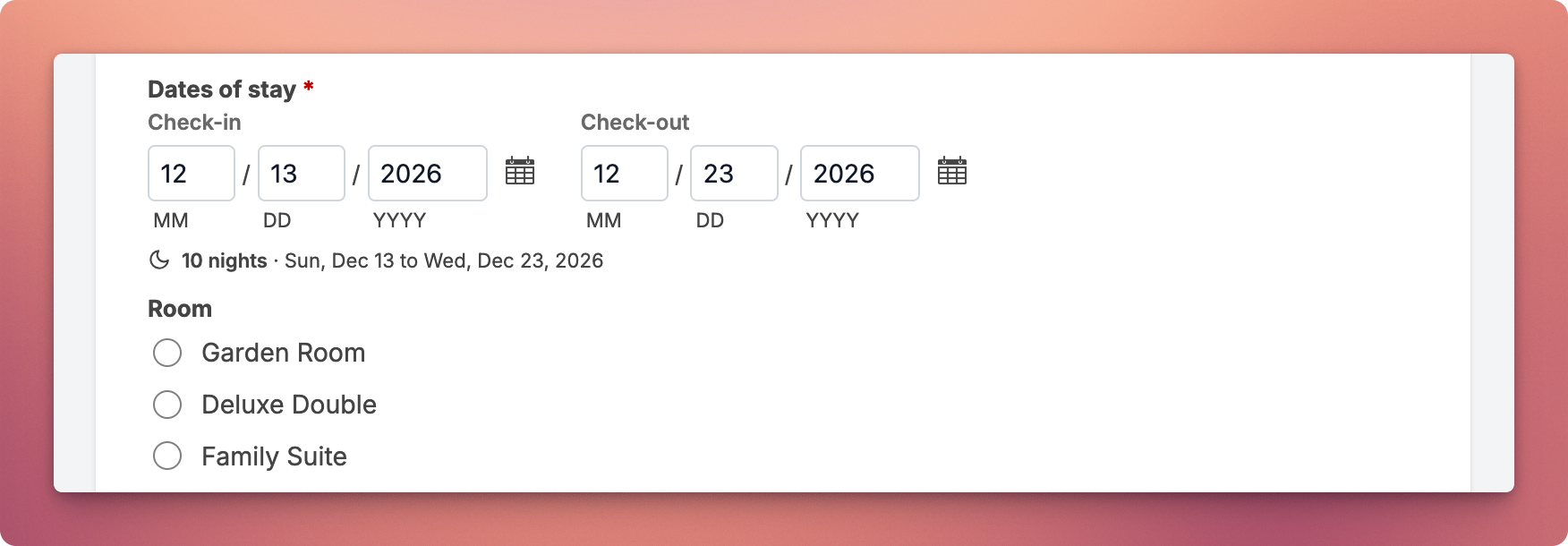
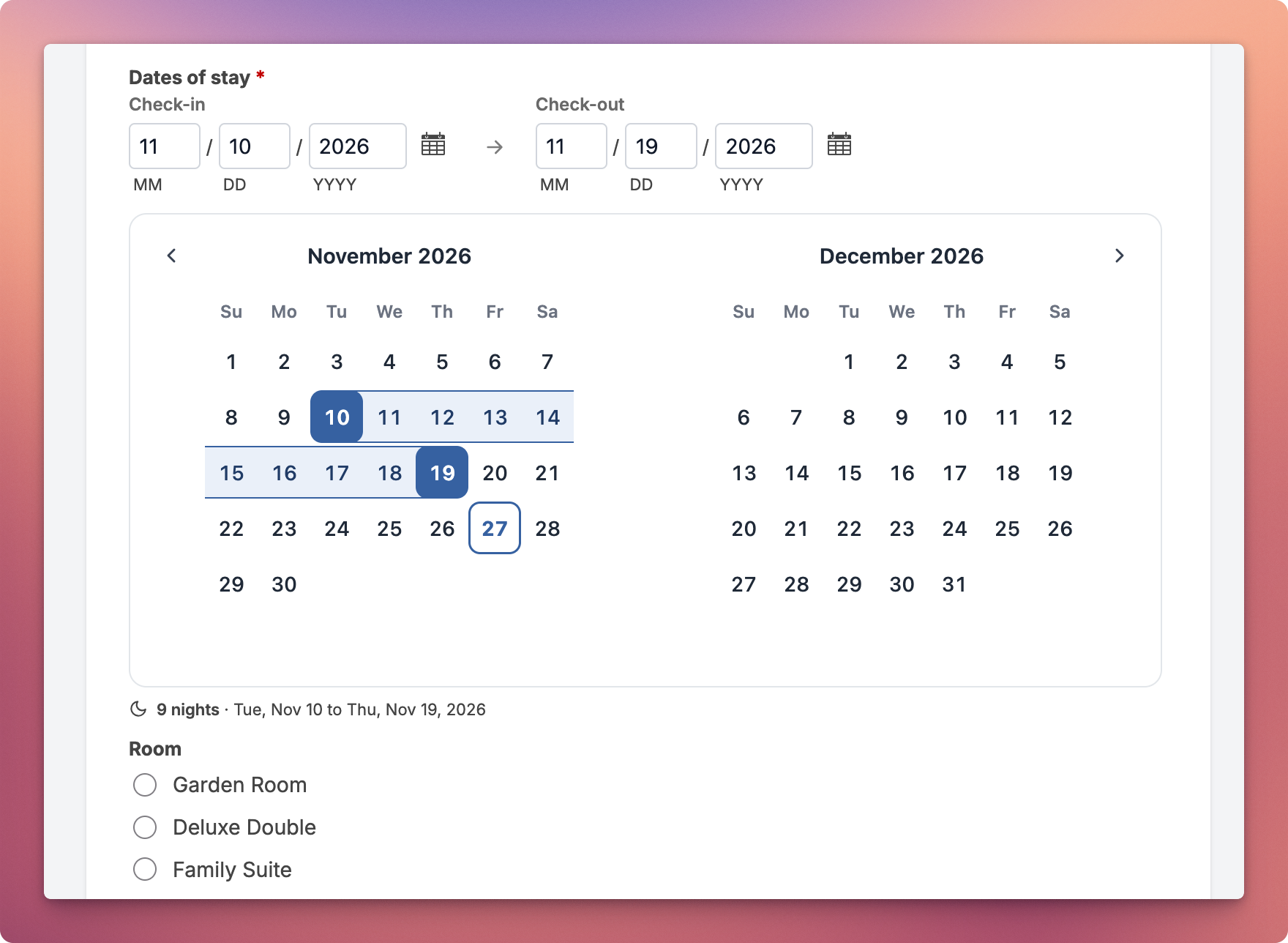
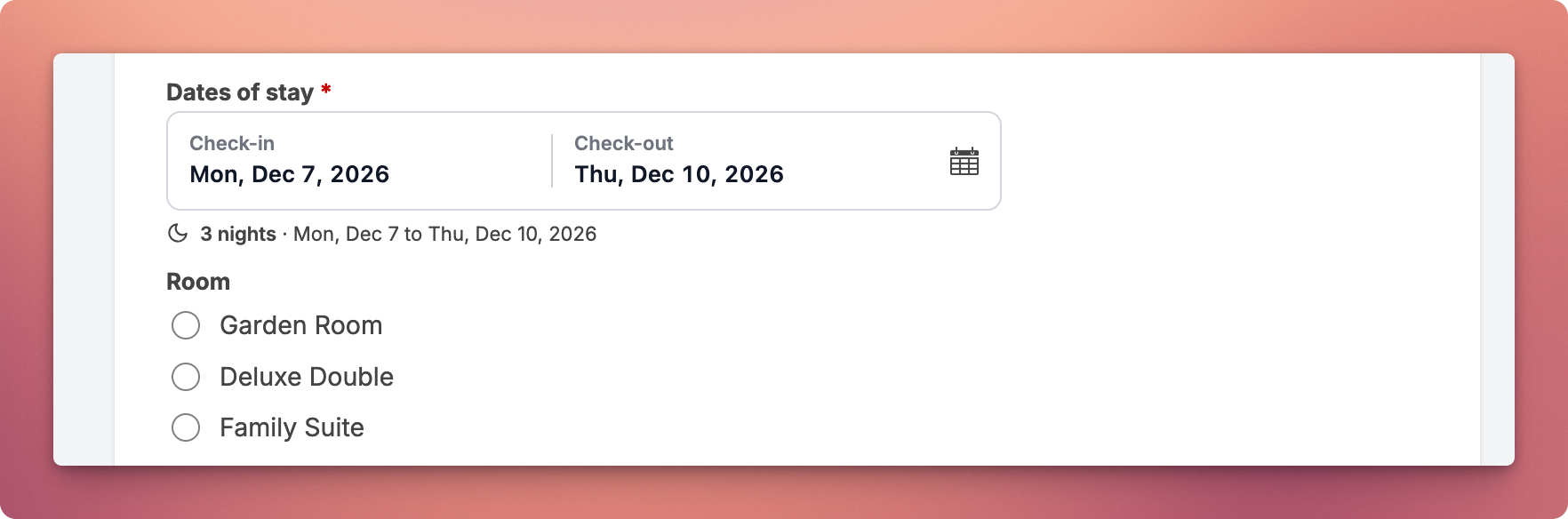
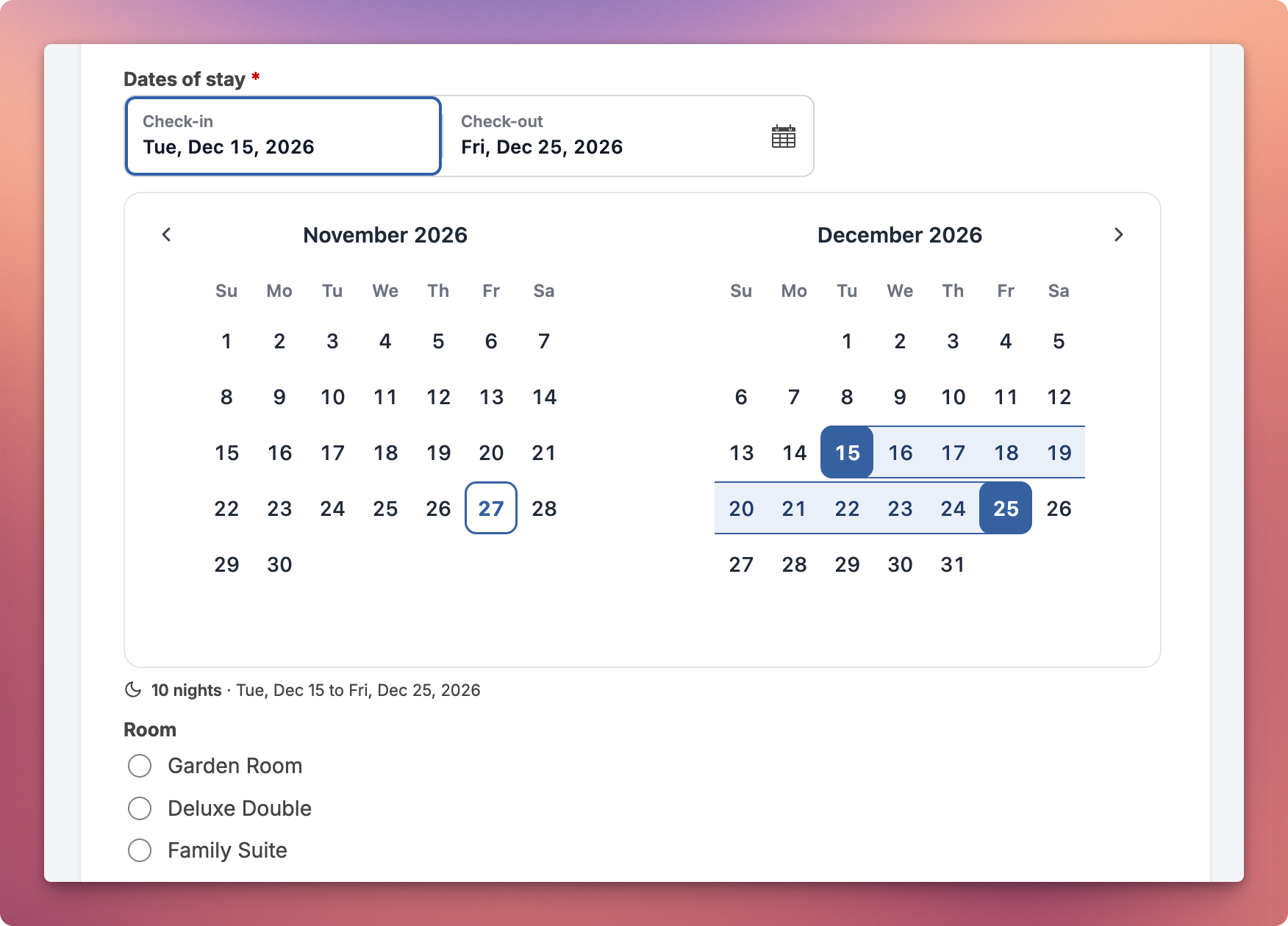
In every combination respondents can type the dates or pick them on the calendar. With the calendar always shown, the field takes the full width of the form, and the field's instructions show under its label.
Nights and days
Count decides what a range is counted in. Take the same range, Nov 20 to Nov 23:
Count | What's counted | Nov 20 to Nov 23 | Dates the range takes up |
Nights | each night from the start to the night before the end | 3 nights | the nights of the 20th, 21st and 22nd |
Days | every day, the first and the last included | 4 days | the 20th, 21st, 22nd and 23rd |
Why the check-out day is free with Nights. A guest checking out on the 23rd leaves that morning, so nobody stays the night of the 23rd on their booking. The 23rd is free for the next guest to check in. With Days, the last day is part of the range, as for a car returned in the evening.
One-day ranges. With Days, the start and the end can be the same date: a one-day rental is "1 day". With Nights they can't: the shortest stay is one night, so the end is at least the day after the start.
Count drives more than the length shown:
Minimum and Maximum are in nights or days.
Limit selections per date counts the dates a range takes up, as in the table above: with Nights, the check-out day isn't counted.
The Includes date filter on the Entries page uses the same rule: with Nights, a guest isn't "in" on their check-out day.
Which dates can be chosen
The windows
Limit date range and Disable past or future dates set the window both dates must fall in. For example, with past dates disabled and a latest date of December 31, both the start and the end must be from today to December 31. The calendar shows dates outside the window, but they can't be picked.
Disabled dates and full dates
There are two kinds of dates a respondent can't have:
Disabled dates are ones you set: days of the week (for example weekends) and specific dates (for example holidays). They show as unavailable.
Full dates are ones that have reached their Limit selections per date. They show struck through, and their name for screen readers is "fully booked".
Allow ranges over disabled dates decides whether a range may run across disabled dates:
Off (the default): a range can't include a disabled date. A respondent who picks Monday as the start can choose an end only up to the day before the next disabled date. Use this for bookings: a guesthouse closed on the 25th can't take a stay over the 25th.
On: a range can run across disabled dates, but can't start on one (nor end on one, with Days). Use this for time off: with weekends disabled, someone can ask for Monday to the following Friday, and the weekend in the middle is part of the range without being counted as a working day. The length still counts every day: Monday to the next Monday is 8 days.
Full dates are never crossed, whatever this setting: a range can't start on a full date or run over one. With Nights, a range can end on a full date (or a disabled one), because no night falls on the check-out day.
Disabled dates inside a range aren't counted toward their own limit.
Limit selections per date
Turn on Limit selections per date in Available dates and set Each date can be selected ... times to the number of places you have on each date: rooms in a guesthouse, cars to rent, seats on a course.
Every entry counts on each date its range takes up. When a date has been taken as many times as the limit, it's full.
An example
A guesthouse with 3 rooms: Count is Nights, and each date can be selected 3 times. Three guests have booked:
Guest | Check-in | Check-out | Nights taken |
Ann | Nov 20 | Nov 23 | 20, 21, 22 |
Ben | Nov 21 | Nov 24 | 21, 22, 23 |
Cat | Nov 22 | Nov 25 | 22, 23, 24 |
Night of | 20 | 21 | 22 | 23 | 24 |
Rooms taken | 1 | 2 | 3 (full) | 2 | 1 |
All three stays include the night of the 22nd, so the 22nd is full: it's struck through in the calendar. A fourth guest, Dan:
can't check in on the 22nd, nor stay over it (for example Nov 21 to Nov 24);
can stay Nov 20 to Nov 22, because checking out on the 22nd doesn't use the night of the 22nd;
can check in on the 23rd, when one room is free again.
With Days instead (a rental with 3 cars, the same dates), every date from the start to the end counts, so the return day is taken too: Ann's car is out on the 20th, 21st, 22nd and 23rd, and the 22nd and 23rd are both full.
What respondents see
Full dates are struck through in the calendar, and can't be picked as a start.
A range can't run over a full date. Once a start is picked, the days after the first full date are faded, and pointing at one says "Check-out by Wed, Nov 25 at the latest".
With Nights, the end can be a full date: checking out on a full date is fine.
Typed dates are checked too. If a typed range includes a full date, the field says so: "Sun, Nov 22, 2026 is fully booked. Please choose other dates." when the start is full, or "Sun, Nov 22, 2026 is fully booked. The latest Check-out you can choose is Sun, Nov 22, 2026." when a later date is.
A date that fills up while they fill in the form. The calendar shows the dates that were full when the page opened. If someone else takes the last place before the respondent submits, nothing is saved: the respondent sees the same message on the field and chooses other dates. On a form with several pages or a review page, they're taken back to the page with the field.
Which entries count
Entry | Counts toward the limit? |
A completed entry | Yes |
An entry saved to finish later (incomplete) | No |
A deleted entry | No |
A denied entry, on a form with an approval workflow | No |
An entry waiting for a payment (Stripe, PayPal, Authorize.net, Braintree) | Yes, for 30 minutes while the respondent pays, then no until it's paid, then yes for good |
An entry with nothing to pay: no payment on the form, Check/Cash, or a 100% discount | Yes, right away and for good |
Two respondents at the same moment
Two people can't take the last place at the same time. When several submit at once, MachForm checks the dates again, one entry at a time, just before saving. The first one gets the place; the others see the "fully booked" message and nothing of theirs is saved.
Edit links
With Edit Completed Entries on, respondents can open their entry again and keep or change their dates. Their own booking doesn't block them: they can save their entry with the same dates, even when those dates are now full. If they change their dates, the new dates they add must have a free place, as for anyone else.
What isn't limited, and how to handle it
Admin Edit Entry. On the entry's Edit Entry page you can set any dates, including disabled and full ones and dates over the limit. This is on purpose, so you can fix a booking by hand. The calendar there shows no limits.
A late payment. See A payment that arrives late section down below. It can put a date one over its limit.
Price per night or day
The field can set what the respondent pays: one price per night (or per day, following Count), multiplied by the length of the range they choose. A 3-night stay at $50 a night costs $150.
Set the price
Open the form's Payment Settings. Under Merchant Settings, turn on Enable Merchant and select your merchant.
Under Define Prices, choose Variable Amount.
In Add a Field To Set Prices, choose the Date Range field (listed as "Dates of stay (Date Range)").
Enter the Price per night (or Price per day), and click Save Settings.
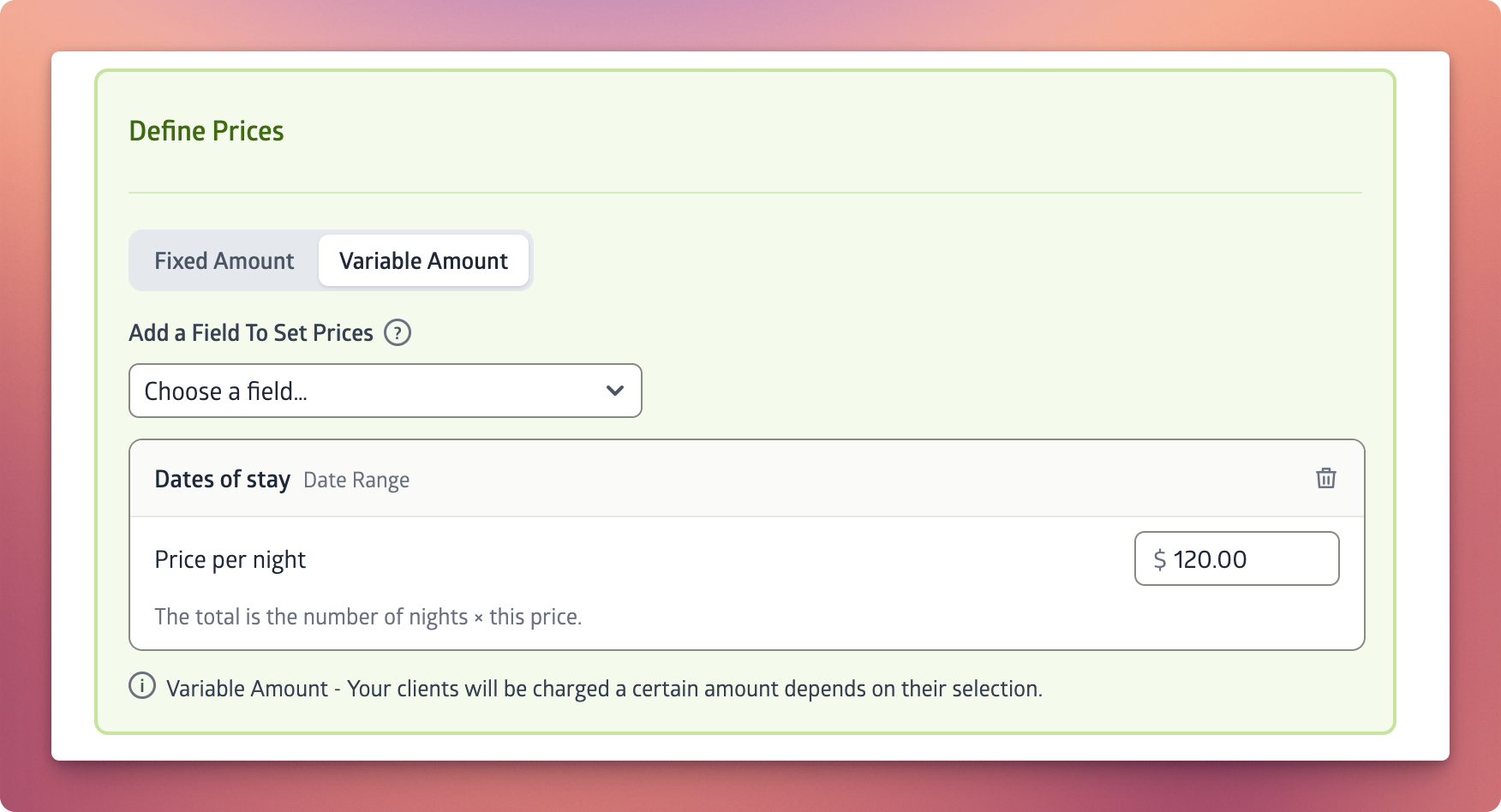
To stop charging by the dates, click the remove button on the field's block and save.
How the total is worked out
The length × the price. The length is counted the way the field counts it: with Nights, Nov 20 to Nov 23 is 3 nights; with Days, it's 4 days. A one-day rental (the same start and end, with Days) is 1 day.
No dates, no charge. An empty range, or one with only a start, adds nothing to the total. On a required field, the respondent can't submit without both dates anyway.
With other prices. The field's amount is added to the form's other priced fields (a Price field, Drop Down, Multiple Choice or Checkboxes), so you can charge, say, a cleaning fee or extras on top of the stay.
Coupons and tax apply to the whole total, the stay included.
One price only. The same price applies to every night or day: there are no weekend or seasonal prices. A Number field's quantity doesn't apply to the field.
What respondents see
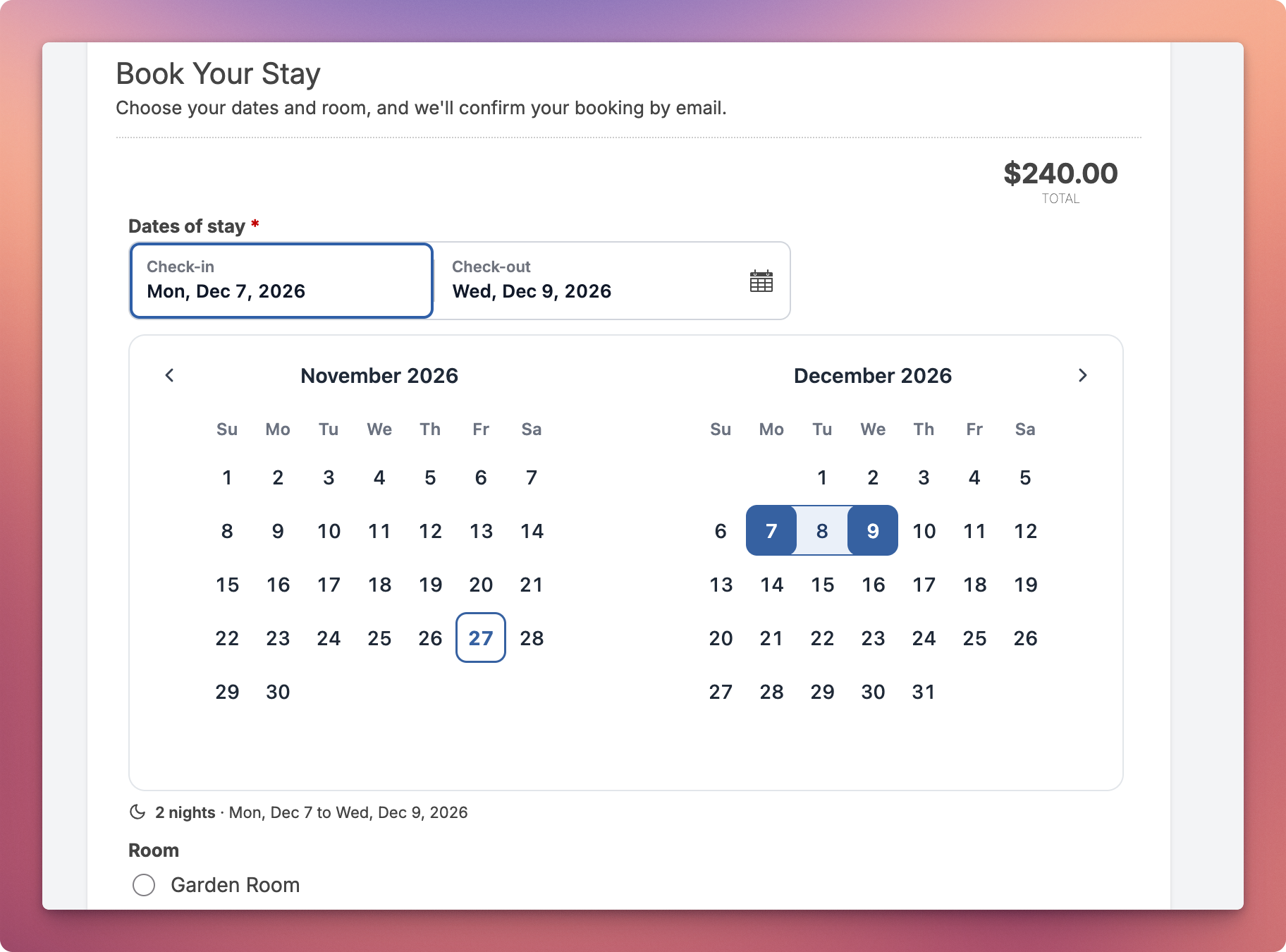
The running total on the form changes as they pick, type or clear their dates.
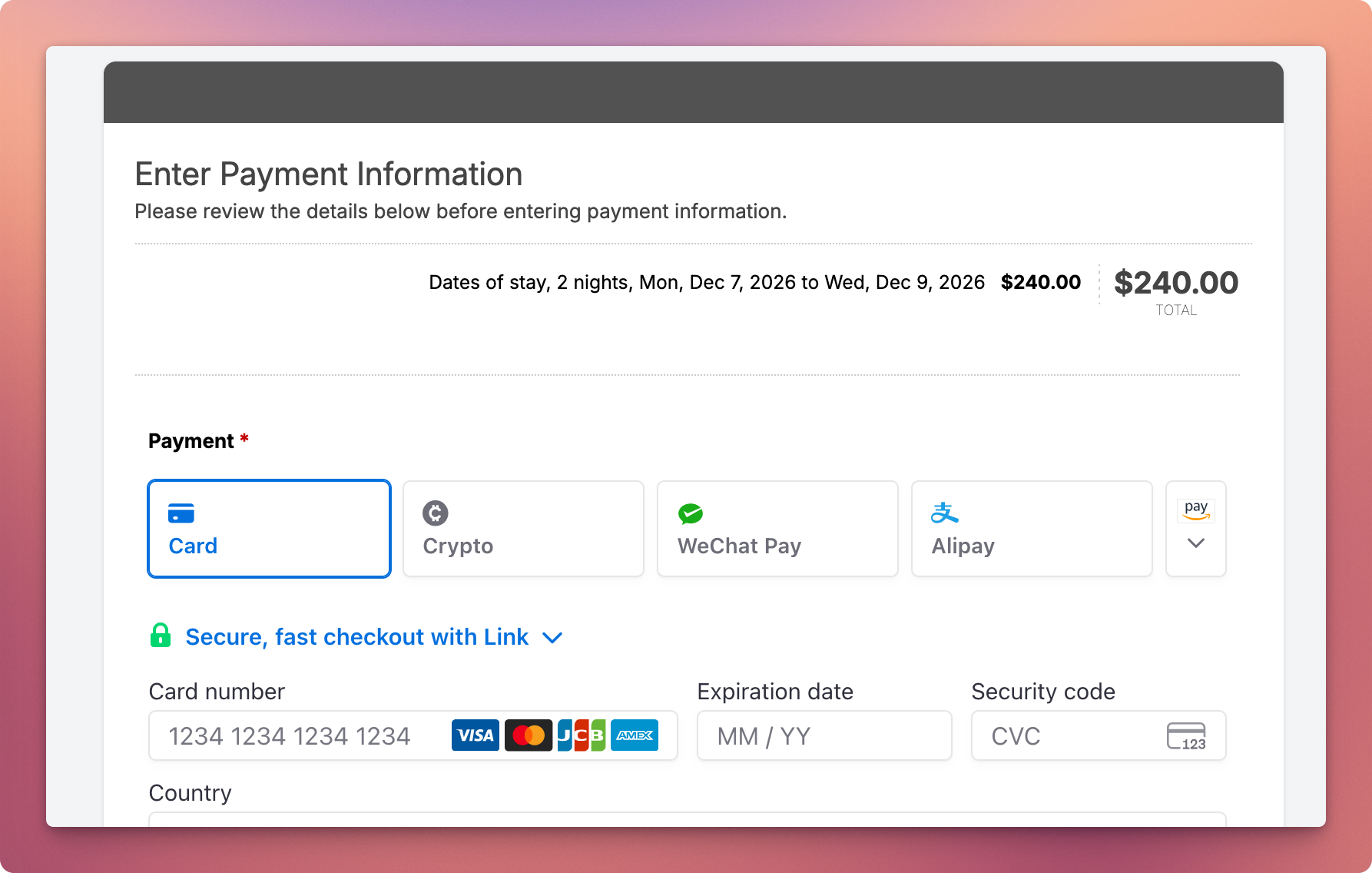
The payment page lists the stay as one line, with the length and the dates in the field's format and the form's language, and its amount beside it:
The same line goes to the payment gateway as the item's name (for PayPal, the item shown on PayPal's page).
If you change Count
The block's label follows the field: Price per night with Nights, Price per day with Days, and the price stays the same. New entries are charged by the new count (a Nov 20 to Nov 23 range is then 4 days, not 3 nights). Entries already paid keep the amount they paid.
Payments
When Limit selections per date is on and the form takes a payment by Stripe, PayPal, Authorize.net or Braintree, the respondent's dates are held for 30 minutes while they pay. During that time the dates count toward the limit, so nobody else can take the last place.
When the payment completes, the dates count for good.
If the respondent leaves without paying, the dates are freed once the 30 minutes are up, and someone else can choose them.
Entries with nothing to pay (for example, with a 100% discount), and forms paid by check or cash, count as soon as the entry is saved.
A payment that arrives late
If a payment completes after the 30 minutes, the dates count again from that moment. The payment has already been taken, so the entry isn't refused. If someone else chose the same dates in the meantime, a date can end up over its limit: for example, three stays on a night that allows two.
This only happens when a payment arrives more than 30 minutes after the entry was saved. To spot it:
Open the entry. Under Payment, compare the Payment Date with the entry's Date Created. A gap of more than 30 minutes means the payment was late.
To see how many entries share a date, filter the entries by the field with Includes date and pick the date.
If a date is over its limit, contact one of the respondents to agree new dates (you can change them on Edit Entry) or a refund.
Changing settings on a form with entries
Existing entries keep their dates. No setting change moves or removes a date that was saved.
Changing Count changes how existing entries count and how their length reads from then on. A Nov 20 to Nov 23 entry reads "3 nights" with Nights and "4 days" with Days. Switching from Days to Nights frees each booking's last day for the limit; switching from Nights to Days takes it, which can put check-out days over the limit.
Changing the limit applies to the calendar and to new entries from then on. If you lower it below the bookings a date already has, those bookings stay, and the date shows as full until enough of them are removed.
Changing the window or disabled dates doesn't touch existing entries. Respondents editing their entry through the edit link can keep their dates, even if they're now outside the window or disabled.
What respondents see
Picking: they click the start, then the end. While they choose the end, each possible end shows the length ("4 nights"), and days that can't be the end are faded, with the reason shown when they point at one ("Minimum stay is 2 nights."). A click on a day before the start begins a new range.
Typing: they can type both dates in the boxes (or in the Joined boxes, in the order the date format sets). Typed dates are checked by the same rules as picked ones, and an error names the date and what to do.
The length: with Show the length under the field on, the field shows "4 nights · Fri, Nov 20 to Tue, Nov 24" once both dates are set.
Keyboard: every date can be picked without a mouse, in the popup and in the calendar that's always shown.
Screen readers: each day is read with its date and what it is, for example "Tuesday, November 24, 2026, 4 nights" or "Wednesday, November 25, 2026, fully booked", and each pick is announced: "Check-in Fri, Nov 20, now choose Check-out".
Phones: the two dates stack, the calendar shows one month, and the buttons are large enough to tap.
Embedded forms, multi-page forms, the review page, save and resume, and the edit link all work with the field. The review page and the confirmation email show both dates with their labels and the length.
Picking dates with the keyboard
Respondents can pick a whole range without a mouse, in both calendar styles, or simply type the dates.
Opening the calendar
Popup: press Tab to reach the calendar button next to the start (or end) date, then press Enter or Space. The calendar opens with the selected date focused, or today if none is set yet.
Calendar always shown: it's part of the form. Press Tab to move into it; one day in the calendar is in the Tab order.
Keys inside the calendar
Key | What it does |
Left / Right arrow | Previous or next day |
Up / Down arrow | The same day in the previous or next week |
Home / End | First or last day of that week |
Page Up / Page Down | The same day in the previous or next month |
Shift + Page Up / Page Down | The same day in the previous or next year |
Enter or Space | Pick the focused day |
Tab | Move between the days, the previous and next month buttons, Clear and Done (in the popup, Tab stays inside it until it closes) |
Escape | Close the popup; focus goes back to the button that opened it |
The arrow keys move between the two months shown without the view jumping. Days that can't be picked can still be reached, so their reason can be read out, but Enter does nothing on them.
Picking a range
Open the calendar from the start date's button (or Tab into the calendar that's always shown).
Move to the start date with the arrow keys and press Enter. The calendar now asks for the end date.
Move to the end date. As you move, the range and its length are previewed, as they are when pointing with a mouse.
Press Enter to pick it. In the popup, press Tab to reach Done and press Enter, or press Escape.
To start again, press Enter on a day before the start date: it becomes the new start.
Typing the dates instead
Two fields: type into the month, day and year boxes in the order the date format shows. The calendar follows what you type.
Joined boxes: type the date as numbers in the date format's order, for example 11/20/2026. It's written out, for example "Fri, Nov 20, 2026", when you leave the box.
Typed dates are checked by the same rules as picked ones.
Screen readers
Each day is read with its full date and what it is ("Tuesday, November 24, 2026, 4 nights", or "Wednesday, November 25, 2026, fully booked"), each grid is named after its month, and every pick is announced ("Check-in Fri, Nov 20, now choose Check-out").
Entries, exports and emails
Entries
The field gives two columns on the Entries page, named after the field and its labels: Dates of stay - Check-in and Dates of stay - Check-out. Each shows its date in the field's date format, and you can sort and filter by either.
The entry's page, its PDF and print show both dates with their labels and the length:
Check-in: Fri, Nov 20, 2026
Check-out: Tue, Nov 24, 2026
4 nights
Filters and "Includes date"
Each column has the usual date conditions (Is, Is Before, Is After) plus Includes date: the entries whose range takes up a date. It answers questions like "who's here on Nov 22?": choose either column of the field, the condition Includes date, and the date. It follows Count: with Nights, a guest checking out on the 22nd isn't included for the 22nd.
Exports
CSV and Excel exports have the two columns. In Excel the dates are real dates, written in the field's format, so you can sort and calculate with them.
Emails and merge tags
Merge tag | Gives |
{element_x} | the range: "Fri, Nov 20, 2026 to Tue, Nov 24, 2026" |
{element_x_start} | the start date (for example "Fri, Nov 20, 2026") |
{element_x_end} | the end date |
{element_x_length} | the length: "4 nights" |
| the start's month, day and year |
| the end's month, day and year |
x is the field's number; the merge tag list in the email settings shows the field's own tags with their names, for example "Dates of stay (Check-in)". {entry_data} shows the field like the entry page does. Dates are written in the field's format and in the form's language.
Logic
In field, page, email, webhook and success page logic, and in approval rules, the field gives three things to test:
Dates of stay - Check-in and Dates of stay - Check-out: dates, with Is, Is Before and Is After;
Dates of stay - Length: a number of nights or days, with Is, Less than and Greater than. For example, show a "long stay discount" field when the length is greater than 6.
Google Calendar
In the Google Calendar integration, choose the field as the event's Start date:
With All day on, the event runs from the start through the last day of the range. For a stay, that's through the check-out day, so the guest's departure shows in your calendar.
For a timed event, the field gives the start date. Choose the field as the End date too, and it gives the end date.
An entry without dates sends no event.
Google Sheets
The field adds two columns to the sheet, like the Entries page.
Setup recipes
A guesthouse
Add a Date Range field titled "Dates of stay". Set Start label to "Check-in" and End label to "Check-out".
In Length, choose Nights. Set Minimum to 1 (or 2 for a two-night minimum) and leave Maximum empty, or set it to your longest stay.
In Available dates, turn on Disable past or future dates and choose All past dates. Disable dates you're closed with Disable specific dates.
Turn on Limit selections per date and set it to the number of rooms.
To charge for the stay, open Payment Settings, choose Variable Amount, add the field and enter the Price per night. See Price per night or day. Dates are held for 30 minutes while a guest pays.
Turn on Edit Completed Entries if guests may change their dates.
A car or equipment rental
Add a Date Range field titled "Rental dates" with labels "Pick-up" and "Return".
In Length, choose Days (the return day counts), with a Minimum of 1.
Disable past dates, and the days you're closed.
Turn on Limit selections per date and set it to the number of cars (or items). Use one form, or one field, per kind of item.
To charge for the rental, add the field in Payment Settings with Variable Amount and enter the Price per day. Add a Price field for a fixed fee, such as insurance or delivery.
A time-off request
Add a Date Range field titled "Leave" with labels "First day" and "Last day".
In Length, choose Days.
In Available dates, turn on Disable days of the week and choose Saturday and Sunday. Add public holidays with Disable specific dates.
Turn on Allow ranges over disabled dates, so a request can run across a weekend.
Leave Limit selections per date off. Use the Includes date filter to see who's away on a given day.
Event dates
Add a Date Range field titled "Event dates" with labels "First day" and "Last day".
In Length, choose Days, with a Maximum if events can only run so long.
Turn on Limit date range with Fixed dates, and set the earliest and latest dates of your season.
Common questions
Why does a date show as fully booked?
It has as many entries as its Limit selections per date. Entries that count include those waiting for a payment, for 30 minutes. To see which entries take it up, filter the Entries page with Includes date and that date.
Why can a guest check out on a full date?
With Nights, the check-out day isn't one of the nights of the stay, so it isn't counted and doesn't need a place. The next guest checks in that day.
Why did an entry's length change?
Count was changed after the entry was saved. The dates are the same; with Nights, Nov 20 to Nov 23 is 3 nights, and with Days it's 4 days.
What happens if a guest doesn't pay?
Their dates are held for 30 minutes while they pay. If the payment doesn't complete, the dates are freed and someone else can book them. If the payment completes later, the dates count again.
Can I charge a different price at weekends or in high season?
No. The field has one price per night or day. For a season with its own price, use a second form with that season's dates (Limit date range) and its price.
Why is the payment total zero?
The respondent hasn't chosen both dates yet, or the field has no price. Check that the field is listed under Define Prices in Payment Settings, with Variable Amount chosen.
How do I free a date?
Any of these removes an entry from the count: deny it (on a form with approvals), delete it, or change its dates on Edit Entry. Incomplete entries never count.
Can respondents pick dates without a mouse?
Yes. They open the calendar from its button with Enter or Space, move with the arrow keys, Page Up and Page Down, and pick with Enter; or they type the dates.
Why could I set dates over the limit on Edit Entry?
The admin's Edit Entry page allows any dates, so you can fix bookings by hand: move a guest, add a booking you took by phone, or correct a mistake. The limit applies to respondents.
Can a respondent pick a range across a weekend I disabled?
Only with Allow ranges over disabled dates on. Full dates can never be crossed.
Why is the end date in my Google Calendar a day later than I expected?
It isn't, as long as the event is all day: Google shows an all-day event through its last day. For a stay, that's through the check-out day.