

A shared list is a list of choices you keep in one place and use in as many forms as you like. Employees, departments, office locations, products, branches, course names: type them once, and every Drop Down or Multiple Choice field that uses the list shows the same items.
When the list changes, every form that uses it changes too. Add a new employee, fix a typo or remove a product that's no longer sold, save the list once, and you're done. No more copying the same choices into every form and fixing each copy by hand.
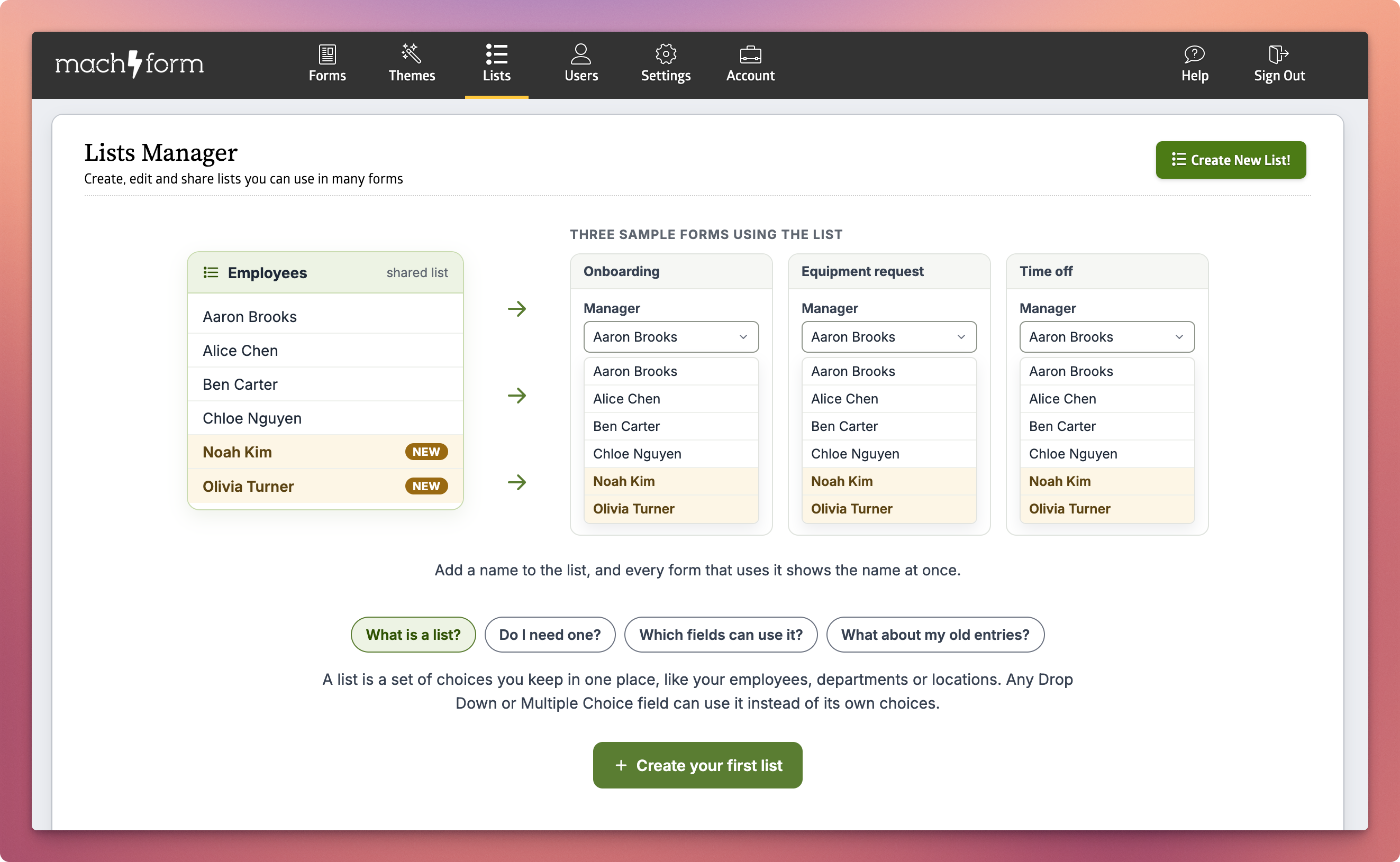
Before you have any lists, the Lists Manager shows a short picture of how they work: a list of names feeding three sample forms, where each new name appears in every form at once. Under it, four questions (What is a list?, Do I need one?, Which fields can use it? and What about my old entries?) each show a one-line answer, and Create your first list starts one.
Who can use lists
Admins and users allowed to create new forms see Lists in the top menu. They can create lists.
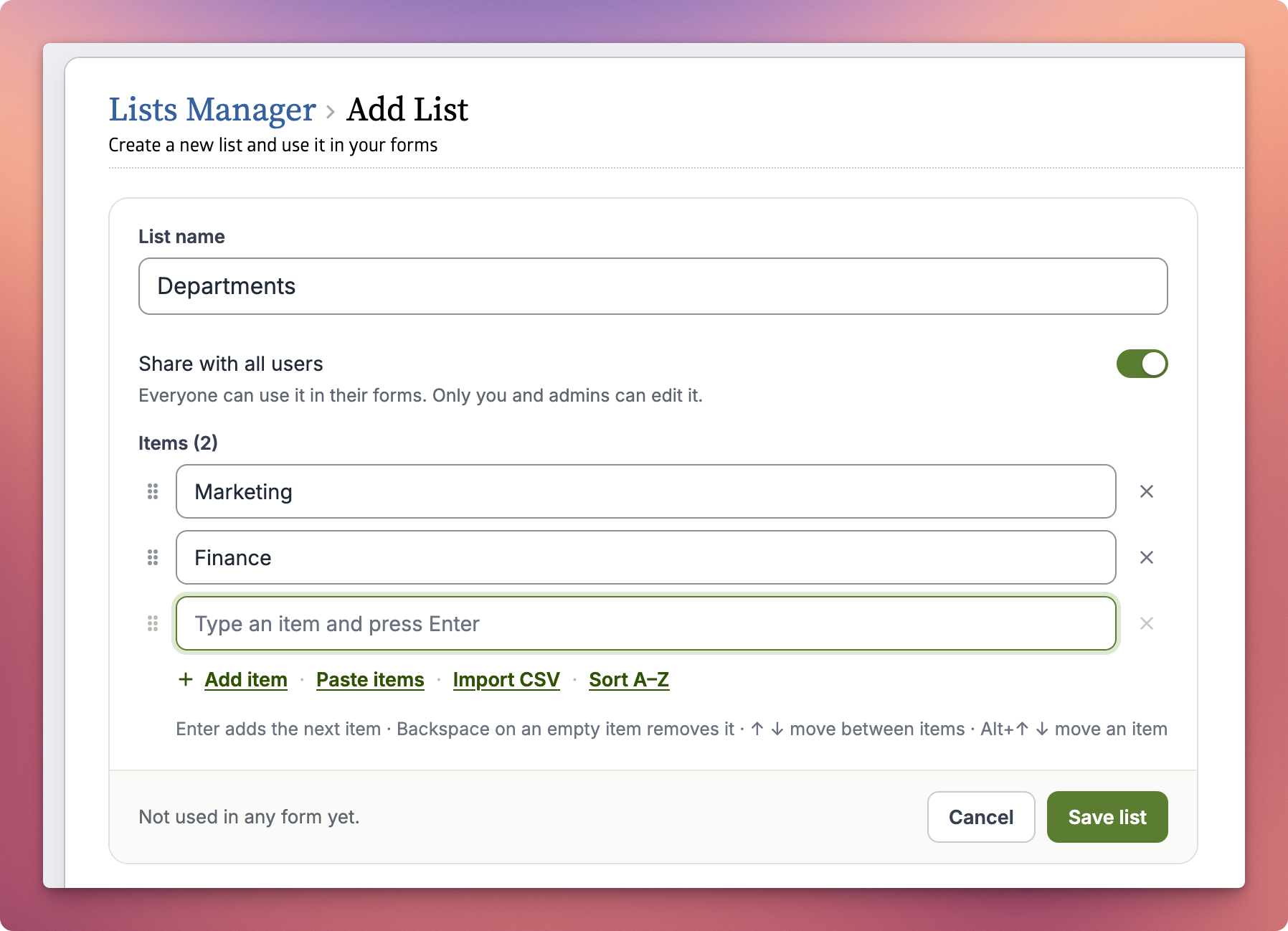
A new list is shared with all users unless you turn off Share with all users:
Shared: Everyone can use it in their forms. Only you and admins can edit it.
Private: Only you and admins can use it and edit it.
Only a list's owner and admins can edit it. Other users can open a shared list to see its items (the Lists Manager shows View instead of Edit), use it in their forms, and make their own copy with Duplicate.
Lists are for the people in your MachForm account. They're never shown to the public, except as the choices of your forms.
If a list you use is made private by its owner, your forms keep using it, and copies of those forms do too. You can't link it to new fields, and importing the form gives the field its own choices instead.
If a user who owns lists is deleted, their lists go to the main admin, still shared or private as they were.
Create a list
Click Lists in the top menu to open the Lists Manager, then Create New List!
Type a List name, for example "Employees".
Press Tab twice (past Share with all users) and type the first item in the empty box, "Type an item and press Enter". Press Enter, and the next empty box is ready. There's always one at the end of the list; an empty one isn't saved.
Have many? Under the items, Paste items opens a box where you paste one item per line, for example a column copied from a spreadsheet. Choose Add to the list or Replace the whole list. The dialog counts what it will do before you add ("5 lines: 3 new items, 1 already in the list (skipped).").
You can also paste several lines straight into an item's box: each line becomes an item, from that box on. Items already in the list and empty lines are skipped, as in Paste items.
Import CSV reads the first column of a CSV file. To import from Excel, save the sheet as CSV first (File › Save As › CSV). A CSV file can be up to 2 MB.
The keys while you type:
Enter goes to the next item (in the middle of the list, it adds a new item after this one).
Backspace in an empty item removes it.
↑ and ↓ move between items.
Put the items in order:
Sort A–Z (once there are two items) sorts them alphabetically.
Drag an item by its handle, or click the handle for the Move menu: Move up, Move down, Move to top, Move to bottom. With the keyboard, Alt+↑ and Alt+↓ move the item you're in.
Once a list has more than 20 items, Find an item above them filters the list.
Click Save list. You're back on the Lists Manager, with "A new list has been added." Anything still typed in the last box is saved too. A list with no items can be saved, and filled in later.
Each item can be in a list only once. MachForm tells you if you type or paste one twice.
Limits
Up to 255 characters per item.
Up to 5,000 items in a list.
Up to 20,000 items in total, counting removed items (they're kept so old entries can still show them). If you reach it, delete removed items that no entry uses with Delete permanently, or start a new list.
Use a list in a form
Shared lists work with Drop Down and Multiple Choice fields.
Open your form in the form builder and select a Drop Down or Multiple Choice field (or add one).
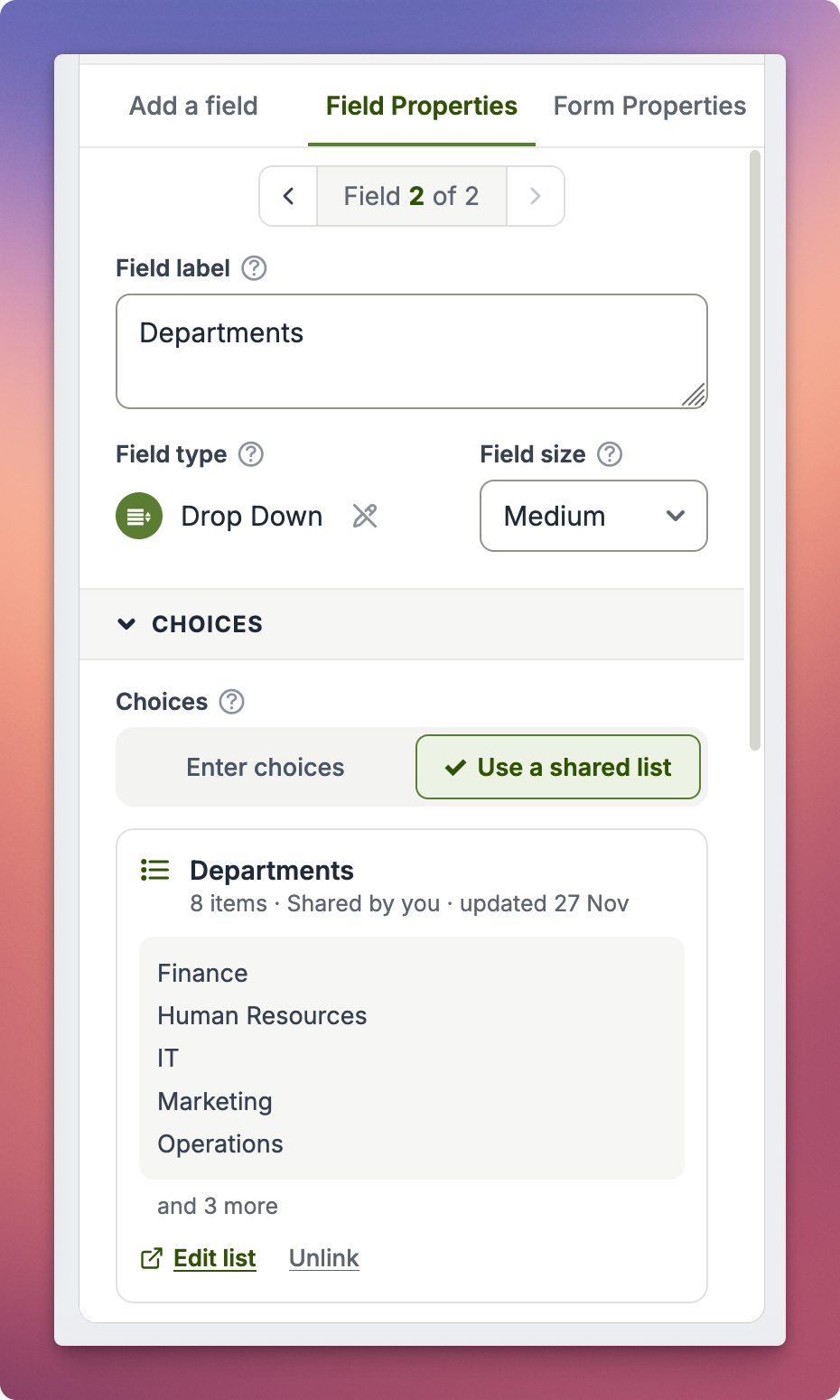
Under Choices, click Use a shared list.
Click Choose a list, search for the list and pick it.
The field's choices now come from the list. The field shows a card with the list's name, its number of items, who shares it, the first few items, and two links:
Edit list opens the list's Edit page in a new tab (if you can edit it).
Unlink turns the list's items into the field's own choices.
Default choice sets which item is selected when the form opens. The default is set per form. The list's items and their order come from the list.
Everything else about the field works as before: the label, Required, Choice layout, Allow "Other" choice, Randomize choice order, Limit selections per choice, prices, logic.
Good to know:
If the field already had choices, MachForm matches them to the list's items by their text. Choices that aren't in the list are hidden, and the card says how many ("2 choices not in the list (hidden)"). Entries that used them keep showing them.
A Multiple Choice field with a long list shows the hint A Drop Down is easier with long lists.
Checkboxes can't use a shared list yet. Each Checkboxes choice is stored as its own column in your entries, so a list that changes would change the shape of your data. Use a Drop Down or Multiple Choice instead, or keep the Checkboxes field's own choices.
Save a field's choices as a list
Already typed the choices in a form? Turn them into a list:
Select the Drop Down or Multiple Choice field.
Click Save as shared list under its choices.
Name the list, choose Share with all users or not, and click Save list.
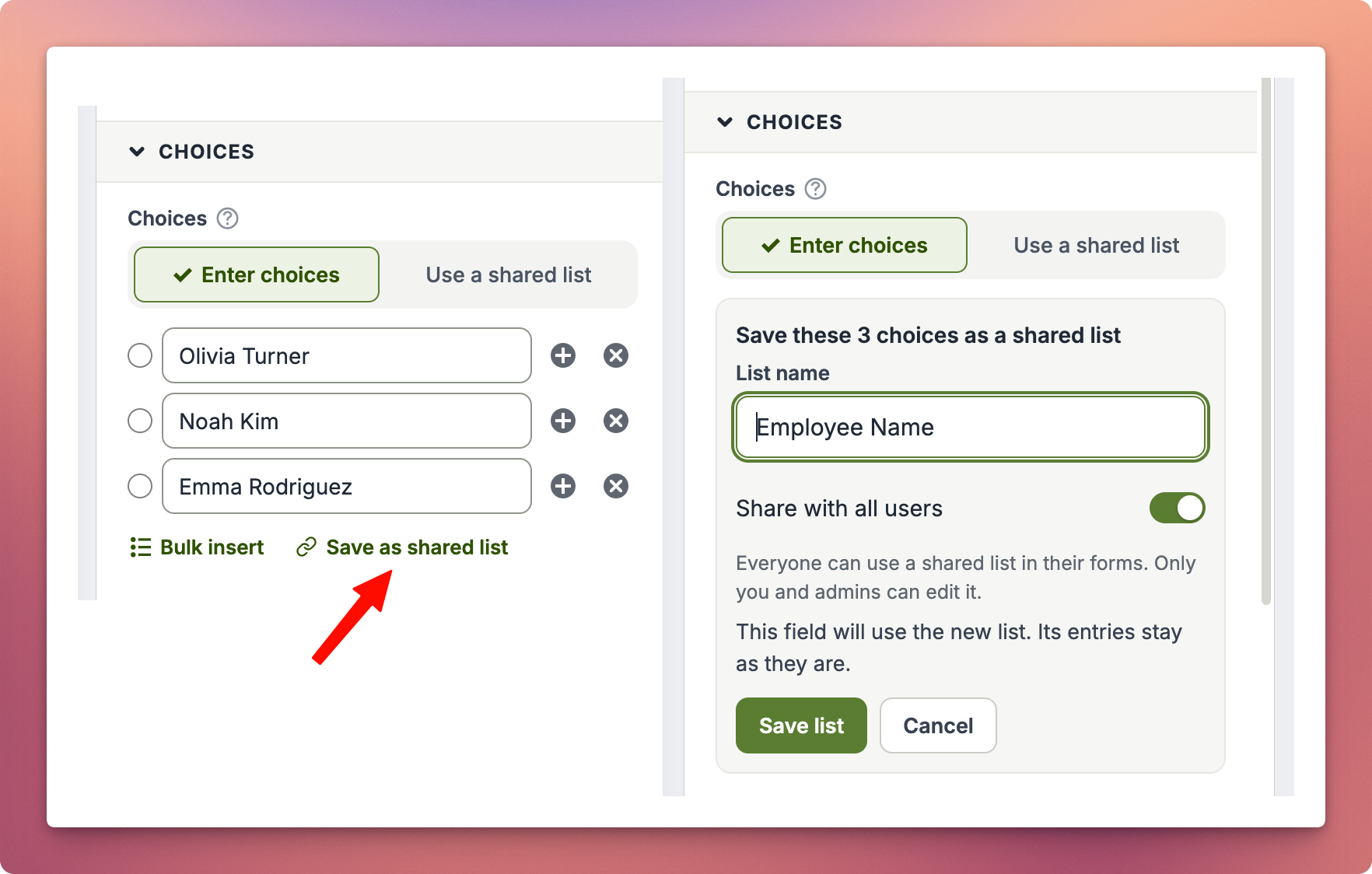
The field now uses the new list. This field will use the new list. Its entries stay as they are. Hidden choices become removed items of the list, so you can restore them later.
Stop using a list
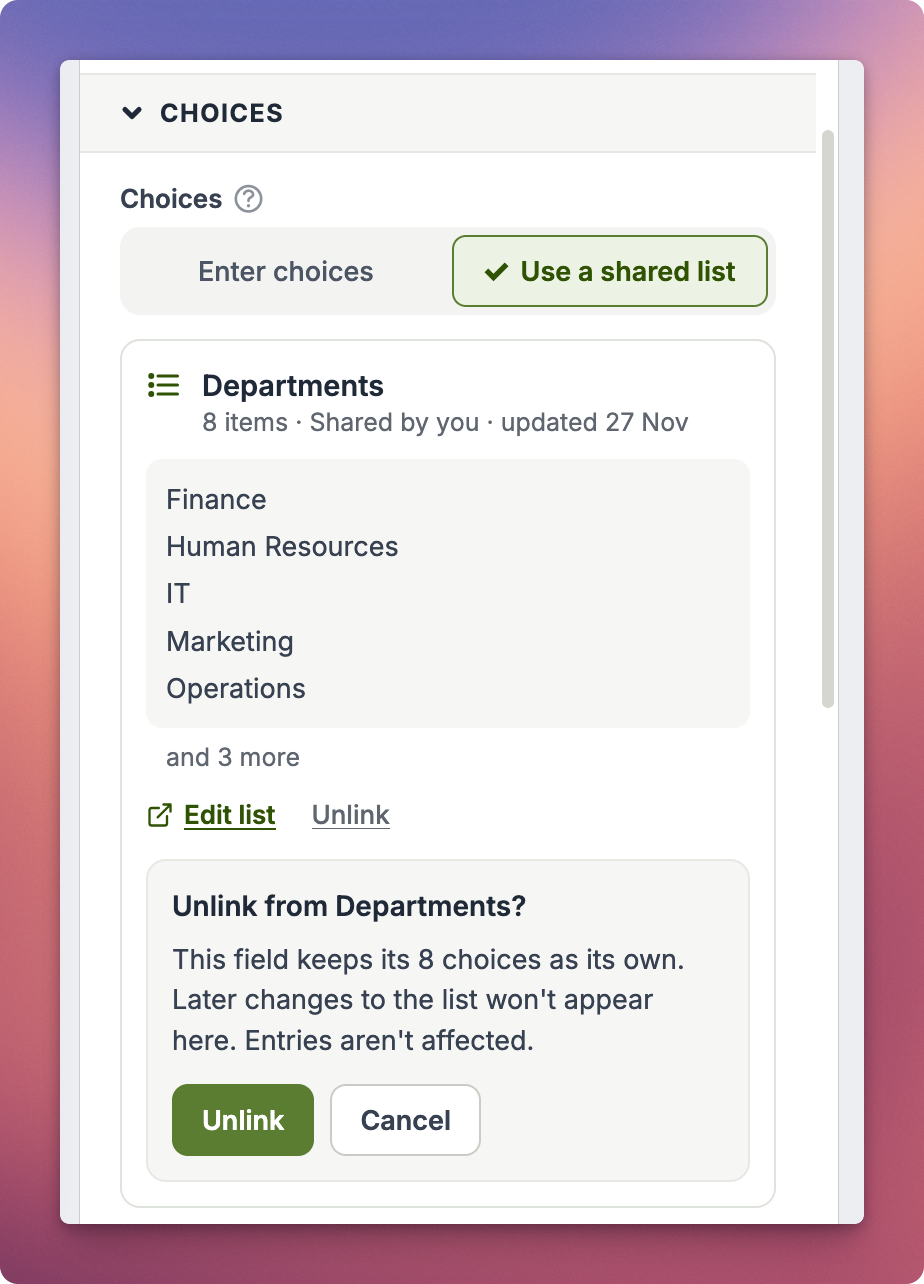
Click Unlink on the field's card, then Unlink again to confirm. The field keeps the list's current items as its own choices; later changes to the list won't appear there. Entries aren't affected.
Change a list
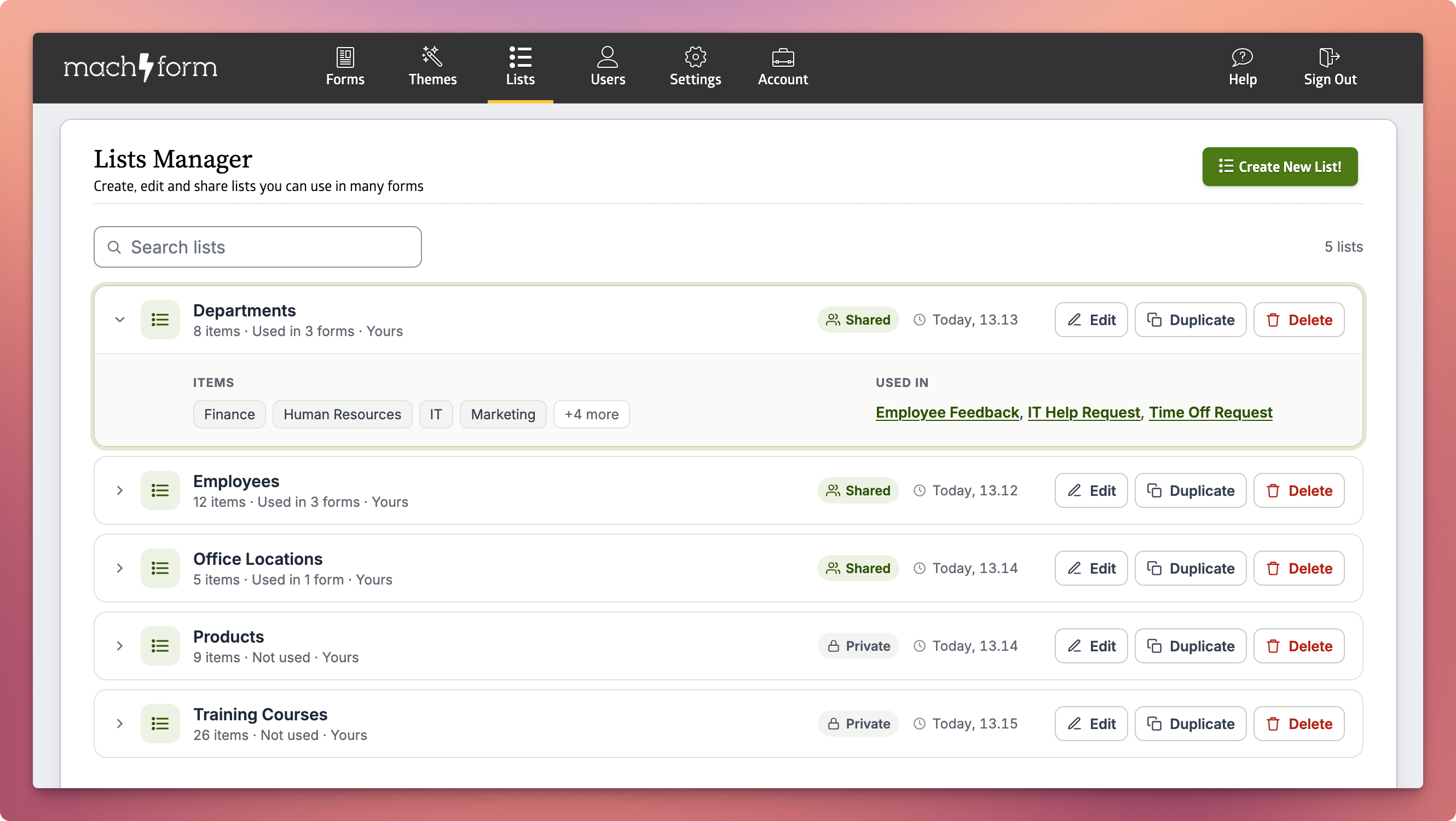
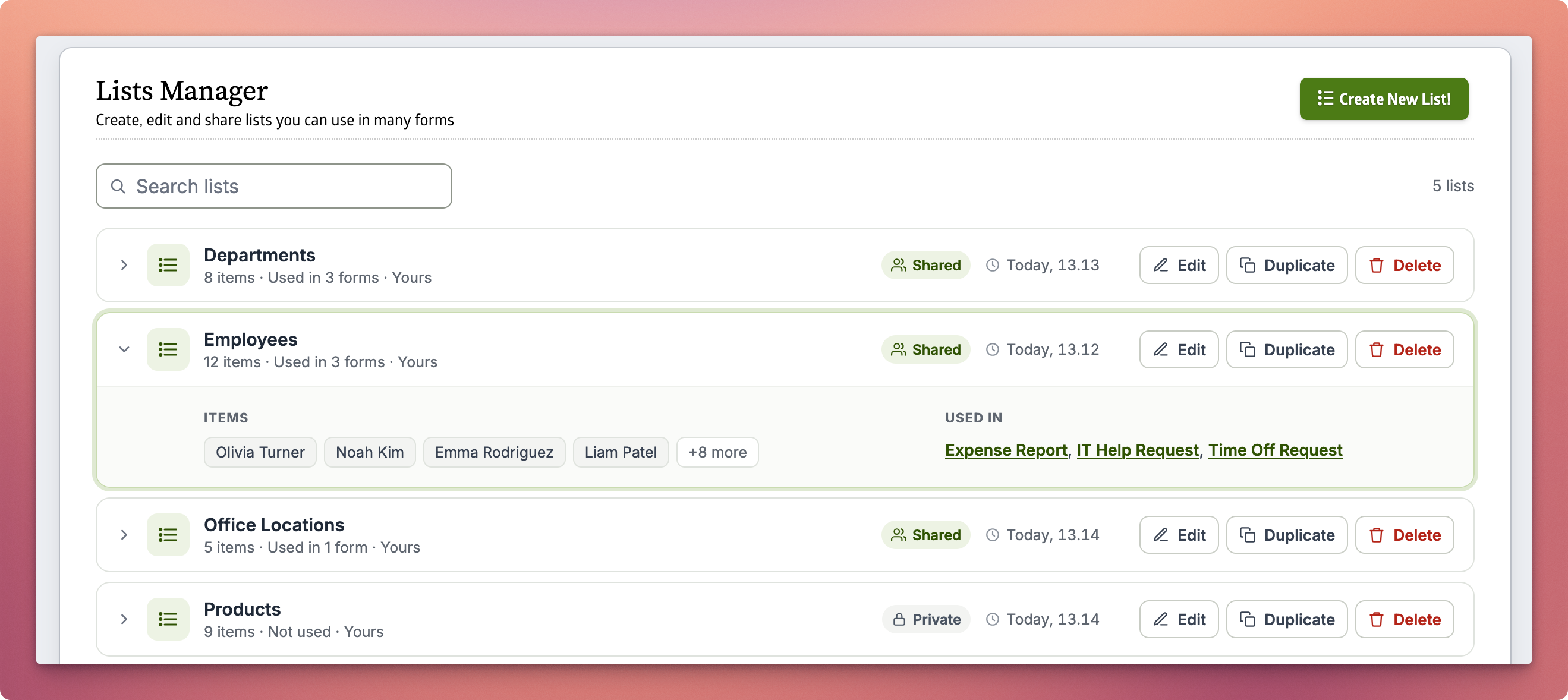
The Lists Manager shows one row per list: its name, how many items it has, where it's used, who owns it, whether it's shared, and when it last changed, with Edit, Duplicate and Delete on the right (View for someone else's list).
Pages: the Lists Manager shows as many lists per page as the Form Manager shows forms (Settings › Form Manager Max List, 10 unless you've changed it). When there are more, the page buttons under the lists move between pages, and the count says which ones you see ("Showing 11 to 20 of 48 lists"). The address keeps the page, so going back from a list, or reloading, brings you to the same page.
Search looks through all your lists, not just the page you're on. While you search, every match shows; clear the box to go back to your page.
Click a row (or press Enter on it) to open it: you see its first items and the forms that use it, with links to those forms. Click it again to close it.
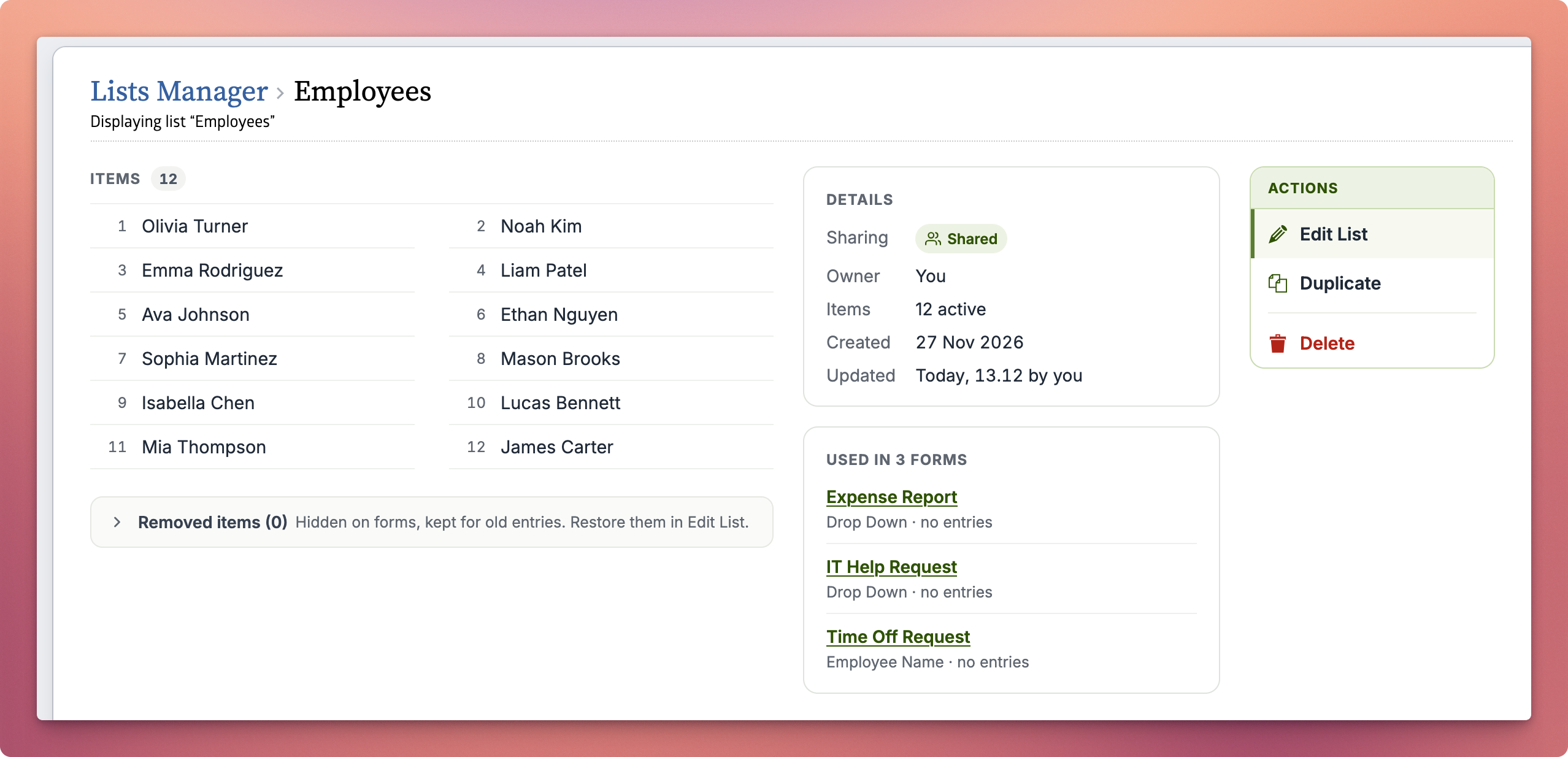
Click a list's name to open its page. It shows the list without changing anything:
Items: the list's items, numbered in the order respondents see them. The first 24 are shown; click Show all to see the rest. Long lists load more as you scroll, and a bar at the top keeps the count in view, with Collapse (back to the first 24) and Back to top.
Removed items: items hidden on forms but kept for old entries, with how many entries have each. To restore one, use Edit List.
Details: whether it's shared, who owns it, how many items it has, and when it was created and last updated (and by whom).
Used in: the forms that use the list, with the field and how many entries chose one of the list's items. Forms you can't edit are only counted.
Actions on the right: Edit List, Duplicate and Delete. On someone else's shared list you can only Duplicate it.
Click Edit on the row (or Edit List on the list's page), make your changes and click Save list. You're back on the list's page with "List “Employees” has been updated." (and how many forms were updated). The Edit page's footer says how many forms use the list ("Used in 6 forms. Changes apply to all of them when you save."); click the number to see which.
Duplicate a list
Duplicate (on a row or on a list's page) makes a copy with the list's current items, in the same order, named "Employees (copy)". Removed items aren't copied. The copy is private and yours, even when you copy someone else's shared list, and it opens in Edit so you can rename it and share it if you like. The original list and the forms that use it don't change.
When you save, MachForm updates every form that uses the list:
new items appear in each form, in the list's order;
renamed items show their new text;
removed items are hidden from each form;
reordering changes the order everywhere.
Respondents filling in a form see the changes the next time the form loads. Entries already submitted keep pointing at the same items, so they stay correct.
Rename an item
To rename an item, type the new text over the old one. The item shows Renamed with the old text underneath until you save.
If entries already have that item, Save list asks you about it first (Review 1 renamed item):
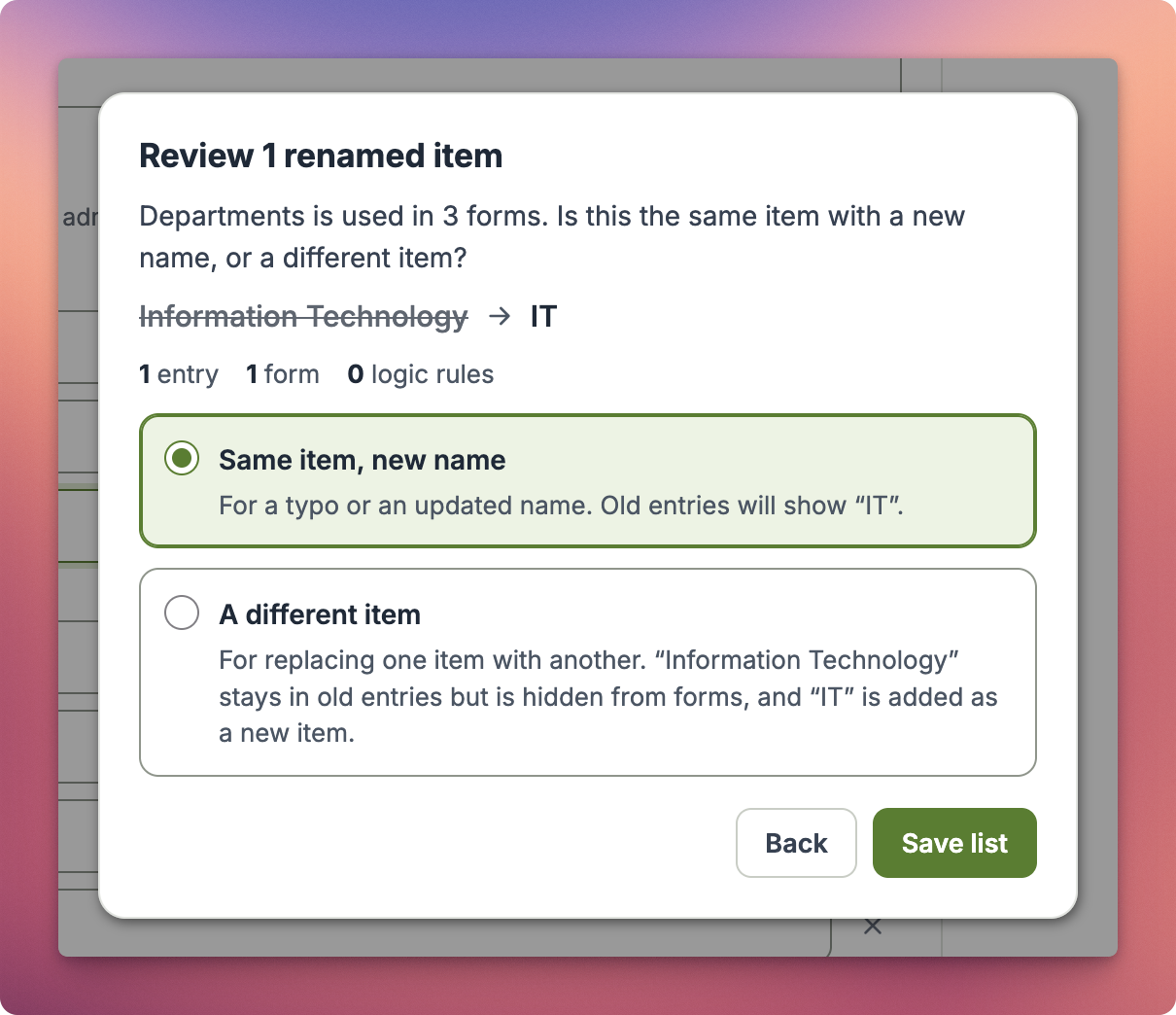
For each renamed item you see how many entries, forms and logic rules use it, and you choose:
Same item, new name (selected at first): For a typo or an updated name. Old entries will show the new name, and the logic rules are updated to match. Use this for spelling fixes or when something is simply renamed ("Jon Smith" → "John Smith"). Logic rules that use is or is not with the old name are updated for you, in field, page, email, webhook, success page and approval logic, report widget filters and saved entries filters.
A different item: For replacing one item with another. The old name stays in old entries but is hidden from forms, and the new name is added as a new item. Use this when one thing replaces another (a person leaves and someone new takes the role). Logic rules aren't changed.
Some logic rules can't be updated automatically, for example "contains Jon". The dialog lists them as links ("IT Request › Email logic") so you can check them after saving. The same links are shown on the list's page after you save.
Renaming an item that no entry has yet, or changing only capital letters or spaces, saves without asking.
Remove and restore items
Click the × next to an item to remove it. When you save:
it's hidden from every form, so new respondents can't pick it;
old entries still show it, in the entries list, exports, PDFs and emails;
a respondent editing their entry through the edit link still sees it, selected, and can keep it.
Removed items are listed under Removed items at the bottom of the editor. Click Restore to bring one back to its old place.
Delete permanently: a removed item that no entry has ever used can be deleted for good. Click Delete permanently next to it and confirm (It isn't in any entry, so nothing is lost. This can't be undone.). Items used in entries show "Used in 3 entries" instead and can't be deleted, so your entries always keep their answers. Deleting permanently frees the item's place under the 20,000 item limit.
Delete a list
Click Delete on the list's row in the Lists Manager, or on the list's page. You're back on the Lists Manager with "List “Employees” has been deleted." If forms use it, their fields keep the list's current items as their own choices, so nothing changes for respondents, and entries aren't affected. Future changes just can't be made in one place any more.
What else works with lists
Prices: each field keeps its own prices for its choices. A new item gets a price of 0 in fields that have prices; set it in the form's payment settings.
Logic: field, page, email, webhook, success page and approval logic work with linked fields as with any Drop Down or Multiple Choice field.
Entries: the entries list, filters and sorting, the entry page, Edit Entry, CSV and Excel exports, PDFs, printing,
{entry_data}and the field's merge tags all show the item's text.Limit selections per choice: counts entries per choice as before, whether the choices come from a list or not.
Duplicating a form: the copy uses the same lists.
Exporting and importing a form: the export file names the lists its fields use. Importing it on the same MachForm keeps the fields linked when the list still exists and the person importing can use it. Otherwise (another MachForm, a deleted list, or a private list), the fields keep the exported choices as their own.
Common questions
Why don't I see the Lists menu?
Lists are for admins and users allowed to create new forms. Ask an admin to turn on Allow user to create new forms for you. On phones, the Lists menu item is hidden; use a larger screen to manage lists.
I renamed an item. Why does an old entry show the new name?
You chose Same item, new name (or the item had no entries, or only its capital letters or spaces changed). Entries point at the item, so they show its current name. If the old name should stay in old entries, rename it back, save, then rename again and choose A different item.
Can a respondent still edit an entry if their choice was removed?
Yes. On the edit link, their own choice is still shown, selected, and they can keep it or pick another. Other removed items stay hidden. The same goes for choices you hide in the form builder, in Drop Down, Multiple Choice and Checkboxes fields.
What happens if someone is filling in the form when I remove an item?
If they pick an item that's removed before they submit, they see "The choice you selected is no longer available. Please choose another." Their other answers are kept, so they only choose again.
Can I use a list in a Checkboxes field?
Not yet. Use a Drop Down or Multiple Choice field.
What happens if two people edit a list at the same time?
The first to save wins. The second sees "Someone else saved this list" and reloads the list to see the latest version, then makes their changes again. Nothing is overwritten by accident.
Can a list update from Google Sheets or another app?
No. Lists are kept in MachForm. To update a list from a spreadsheet, use Paste items or Import CSV and choose Replace the whole list; items that are already there keep their entries.
Does changing a list change entries?
No. Entries keep pointing at the same items. Renamed items show their new name; removed items keep showing in old entries.